EDATEC’s documentation describes the ED-IPC1220’s RS485-1 port as a route to the Linux console. That was where I started, but the expected login prompt did not appear. What followed was a useful troubleshooting exercise and a reminder that verifying the physical interface and diagnosing the software configuration are two separate jobs.
First attempt
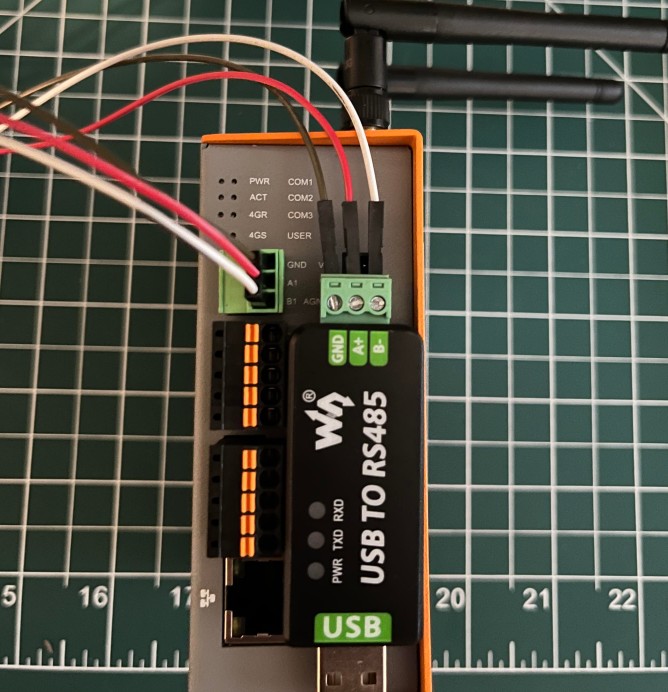
Wiring RS485-1 for serial access
For my first connection attempt, I used a different USB-to-RS485 module. When PuTTY remained blank, I did not yet know whether that module was faulty, so I replaced it with a Waveshare USB-to-RS485 adapter based on the FT232RL and SP485EEN chips. The Waveshare adapter produced the same blank terminal, which helped rule out the USB-to-RS485 hardware as the cause.
I also temporarily replaced the original RS485-1 terminal block supplied with the ED-IPC1220. The separately sourced replacement uses screws to clamp the wires, which made the test leads easier to connect, secure, and adjust during troubleshooting. The original terminal block was not defective.
| ED-IPC1220 | Waveshare adapter |
|---|---|
| GND | GND |
| A1 | A+ |
| B1 | B− |
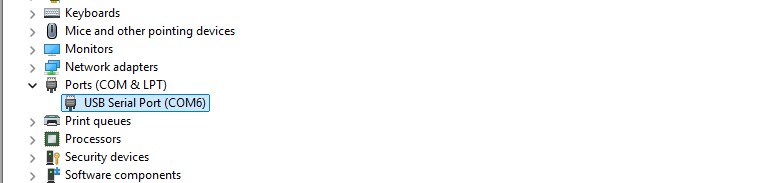
Windows Device Manager listed the USB-to-RS485 adapter as COM6, confirming that the PC recognized it.
With COM6 confirmed, I opened it in PuTTY at 115200 baud, with eight data bits, one stop bit, no parity, and no flow control. PuTTY opened the port, but the terminal remained blank.
I also used a multimeter to check continuity between the screw terminals and the corresponding RS485 pins on the ED-IPC1220. The GND, A1, and B1 connections all tested correctly, confirming that the replacement terminal block and test leads were making proper contact.
I confirmed the COM port and serial settings, tried alternative baud rates, swapped the A/B connections in case the polarity labels differed, restarted the ED-IPC1220, and checked the adapter indicators and PuTTY’s local echo settings. None of those steps produced a login prompt.
A second route in
Direct Ethernet did not provide an IPv4 address
The router was in another room, so rather than run a long cable I connected the ED-IPC1220 directly to the Windows PC. I assigned the PC’s Ethernet interface the static address 192.168.50.1/24 and tried reaching the unconfirmed test address 192.168.50.2.
That attempt failed, and the ED-IPC1220 did not appear in the relevant Windows ARP table. Assigning 192.168.50.1/24 configured only the PC; it did not assign an address to the ED-IPC1220. Because the direct connection had no DHCP server, the device had no source from which to obtain an IPv4 address automatically.
I then monitored the direct Ethernet connection with Wireshark. The capture showed DHCP Discover packets from the ED-IPC1220, confirming that it was requesting an IPv4 configuration. No DHCP server was present to answer those requests.
The capture also showed IPv6 Neighbor Solicitation packets. Unlike a DHCP-assigned IPv4 address, an IPv6 link-local address allows two devices on the same network link to communicate without a router or DHCP server. I isolated the Neighbor Solicitation traffic with this display filter:
icmpv6.type == 135
The initial Neighbor Solicitation represented the device checking its tentative IPv6 address through Duplicate Address Detection. Subsequent IPv6 traffic and mDNS announcements confirmed that the ED-IPC1220 was using that address and advertising the hostname ipc1220.local.
First successful login
IPv6 provided the way into the system
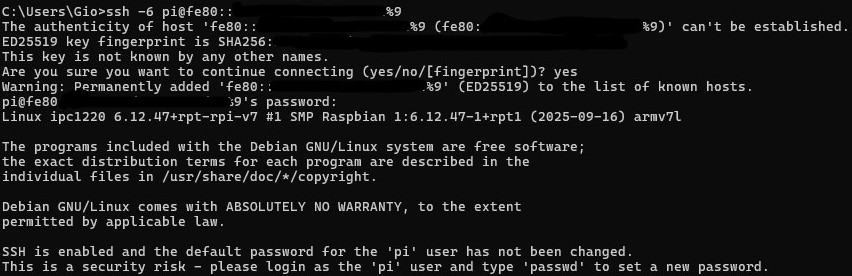
With the ED-IPC1220’s link-local address confirmed, I combined it with the Windows Ethernet interface identifier and connected over SSH. The shortened command below preserves the IPv6 prefix without publishing the complete address:
ssh -6 pi@fe80::…%9This produced the first successful Linux login. The review unit reported Raspbian GNU/Linux 13 and kernel 6.12.47+rpt-rpi-v7. It also warned that the default password for the pi account had not been changed. The supplied default password was raspberry, and I changed it during testing.
Connection stability
Wi-Fi became the more reliable working connection
The direct-Ethernet SSH session periodically ended with client_loop: send disconnect: Connection reset.

Power-cycling the ED-IPC1220 restored communication, but my checks did not establish the cause. The firmware reported throttled=0x0, meaning it had not recorded undervoltage or throttling during that boot, and a short IPv6 ping test completed without packet loss. Those observations are not evidence of an Ethernet hardware defect.
To continue testing, I checked the interfaces with nmcli device status, confirmed that wlan0 was available, and scanned for nearby networks:
nmcli device wifi list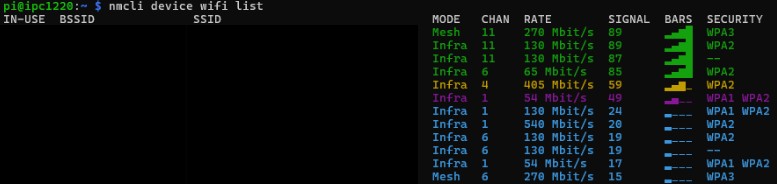
I connected using NetworkManager’s interactive password prompt:
sudo nmcli --ask device wifi connect "YOUR_SSID" ifname wlan0After confirming the private IPv4 address assigned to wlan0, I could connect from Windows with a conventional SSH command. The Wi-Fi session remained stable through the rest of this initial testing, including a period of at least ten minutes without the resets seen on the direct Ethernet connection.
Back to the serial ports
Identifying the ED-IPC1220’s device mappings
With a stable shell available over Wi-Fi, I returned to the serial interfaces. The command ls -l /dev/com* exposed EDATEC’s device aliases and their underlying Linux devices.

| Device alias | Linux device | Physical interface |
|---|---|---|
/dev/com1 | /dev/ttyS0 | RS485-1 |
/dev/com2 | /dev/ttysWK0 | RS485-2 |
/dev/com3 | /dev/ttysWK1 | RS232 |
This confirmed that RS485-1 was mapped to /dev/ttyS0. The /dev/ttyUSB0 through /dev/ttyUSB3 devices I had also found were associated with the onboard Quectel cellular modem, not the external RS485 connectors.
Hardware check
RS485 communication worked in both directions
Before making another attempt at an interactive Linux login, I tested the RS485-1 data path directly. With the Waveshare adapter still attached and PuTTY configured for COM6 at 115200 baud, 8N1, and no flow control, I configured the ED-IPC1220 port:
sudo stty -F /dev/com1 115200 cs8 -cstopb -parenb -ixon -ixoff -crtsctsI sent a message from the ED-IPC1220 to PuTTY:
echo "HELLO FROM EDATEC RS485" | sudo tee /dev/com1The message appeared correctly on Windows. I then reversed the test by listening on the ED-IPC1220 with sudo cat /dev/com1 and typing into PuTTY. The text entered on Windows appeared in the SSH terminal.

This confirmed that the RS485-1 hardware and adapter connection were working. I forced PuTTY’s local echo and local line editing off so locally displayed keystrokes could not be mistaken for data received from the ED-IPC1220.
Cause identified
The serial login service was inactive
The working data path pointed back to software configuration. The kernel command line contained console=tty1, but no serial kernel console. Separately, systemctl status serial-getty@ttyS0.service showed that the login service for RS485-1 was loaded but disabled and inactive.
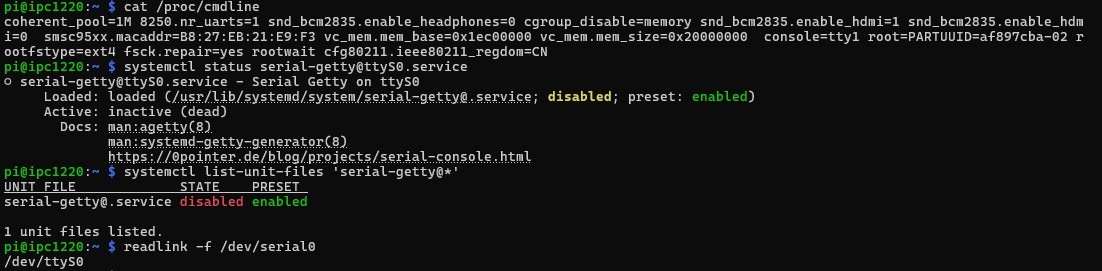
That explained the blank PuTTY terminal: the port could carry data, but no login process was waiting on it. The USB-to-RS485 module I had initially suspected was not the cause. Serial communication itself was working; it was the RS485-1 serial login service that was not enabled by default in the software image shipped with this specific review unit.
EDATEC’s documentation describes RS485-1 serial access as available for the initial login, so the state of this review unit differed from that procedure. I cannot say whether the same configuration applies to other units or software-image revisions.
To test the login function without making a permanent startup change, I started the service for the current boot:
sudo systemctl start serial-getty@ttyS0.serviceThe service reported active (running). After I reopened PuTTY and pressed Enter, the ipc1220 login: prompt appeared and accepted the account credentials.
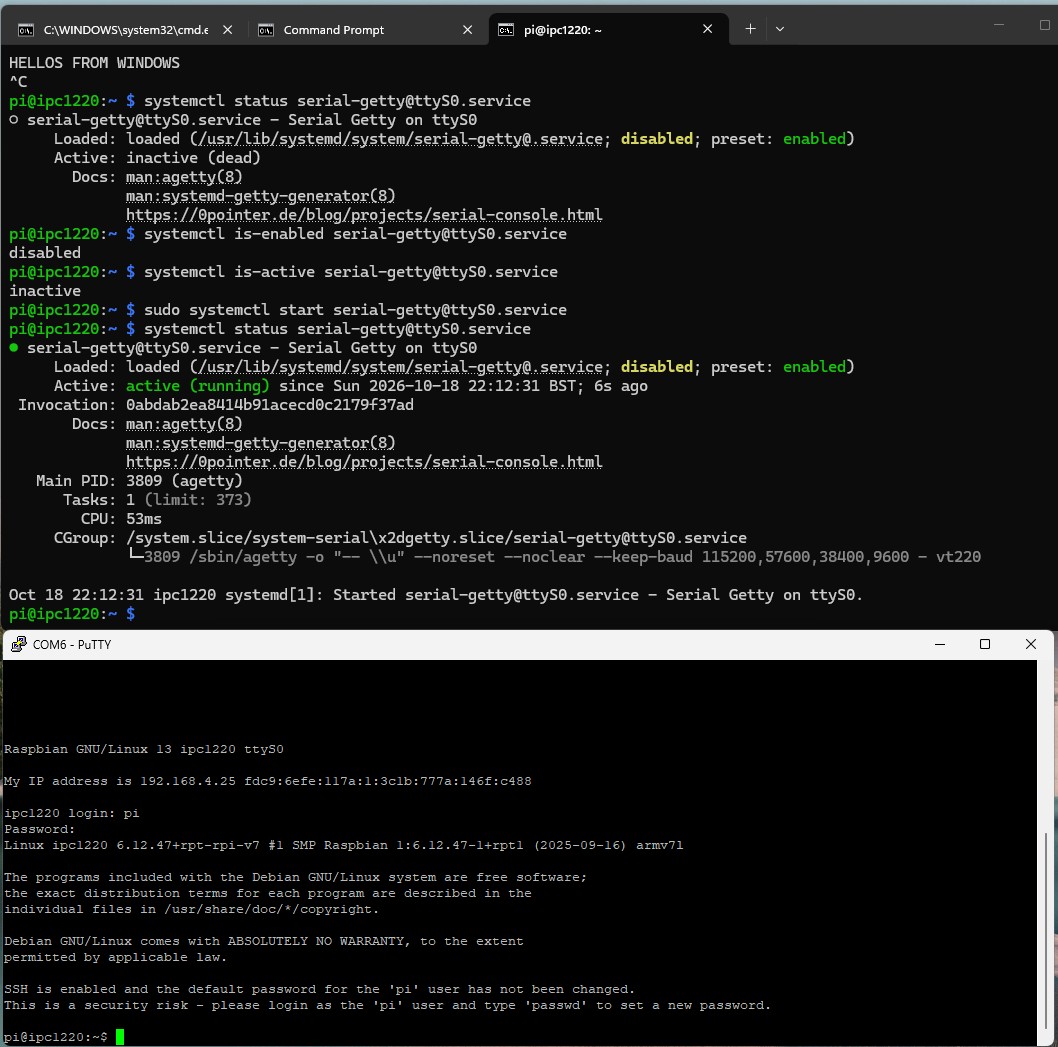
I intentionally left the service disabled for automatic startup. The systemctl start command activated it temporarily; it did not permanently enable the service. A serial login service and a kernel boot console are also distinct functions, even when they use the same physical port.
Software image
EDATEC’s hardware-support packages are preinstalled
A package search showed several EDATEC-specific components in the supplied image. Because my goal in this session was to get the device connected and establish working access, I only confirmed that these packages were present:

| Package | Purpose shown by the package listing |
|---|---|
ed-adc | EDATEC ADC library |
ed-base-bsp-v8 | EDATEC board-support package |
ed-ipc1220-firmware | Device-specific firmware package |
ed-mgmt | Command-line management utilities |
ed-qmi-tool | Quectel cellular-modem management software |
ed-wk2xxx-uart-firmware | WK2XXX UART-controller support |
The list shows that the Raspberry Pi OS image includes vendor software for the ED-IPC1220’s interfaces and peripherals. It does not, by itself, establish that every supported feature is functioning. Next time, I will explore these EDATEC-specific packages and the hardware features they support in more detail.
Initial configuration complete
A working system, reached by the long route
By the end of this session, I had stable SSH access over Wi-Fi, confirmed bidirectional communication through RS485-1, and demonstrated an interactive serial login after starting the inactive login service. The first attempt was not straightforward, but it isolated a configuration issue from the physical RS485 link and established a reliable path for deeper testing.
Next time, I will explore the EDATEC-specific software packages, the remaining RS485 and RS232 ports, and the digital and analog I/O. The intermittent resets observed on the direct Ethernet connection also remain an open question rather than a hardware diagnosis.