From first boot to a working Gemini connection
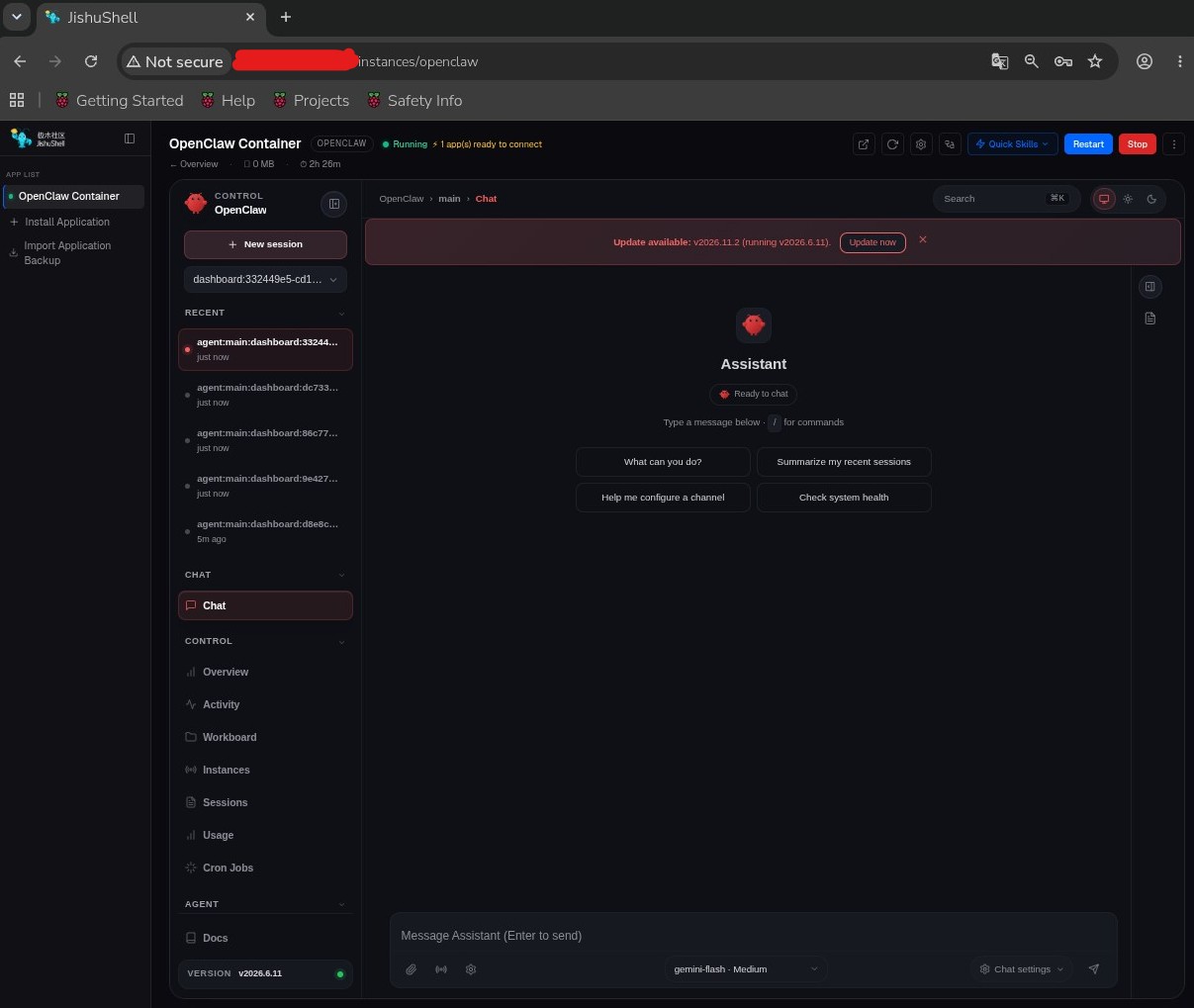
In our unboxing and getting started chapters, we explored the hardware, first boot, and preloaded OpenClaw environment. This installment focuses on connecting OpenClaw to Google's Gemini API and testing whether a cloud-hosted language model can interact with the device's local environment.
The ED-CLAWBOX uses EDATEC's JishuShell management interface, which provides access to an OpenClaw container. OpenClaw supports external language-model providers as well as locally configured models.
For this test, we configured Google Gemini as the cloud-based language model, evaluated API connectivity, investigated model availability errors, and eventually received responses through the OpenClaw agent.
The objective was to demonstrate a hybrid configuration in which the cloud model handles language processing and reasoning while OpenClaw provides access to tools running on the ED-CLAWBOX.
Choosing Gemini after a brief Qwen experiment
Before setting up Gemini, we briefly experimented with Qwen locally through Ollama on the ED-CLAWBOX. We were still finding our way around Qwen and its configuration, so we chose Gemini as a more approachable starting point for this OpenClaw test. This was a choice about our familiarity with the software, rather than a verdict on Qwen or the hardware.
We plan to revisit Qwen once we are more familiar with local models and OpenClaw's configuration. For this chapter, using a cloud model let us explore OpenClaw while moving language-model inference off the ED-CLAWBOX.
Our first Gemini API setup
This was also our first time using Google's Gemini API, and getting started was relatively straightforward. We opened Google AI Studio, created an API key, and associated it with a Google Cloud project. Our project used the Free tier; availability and usage limits depend on the project and account.
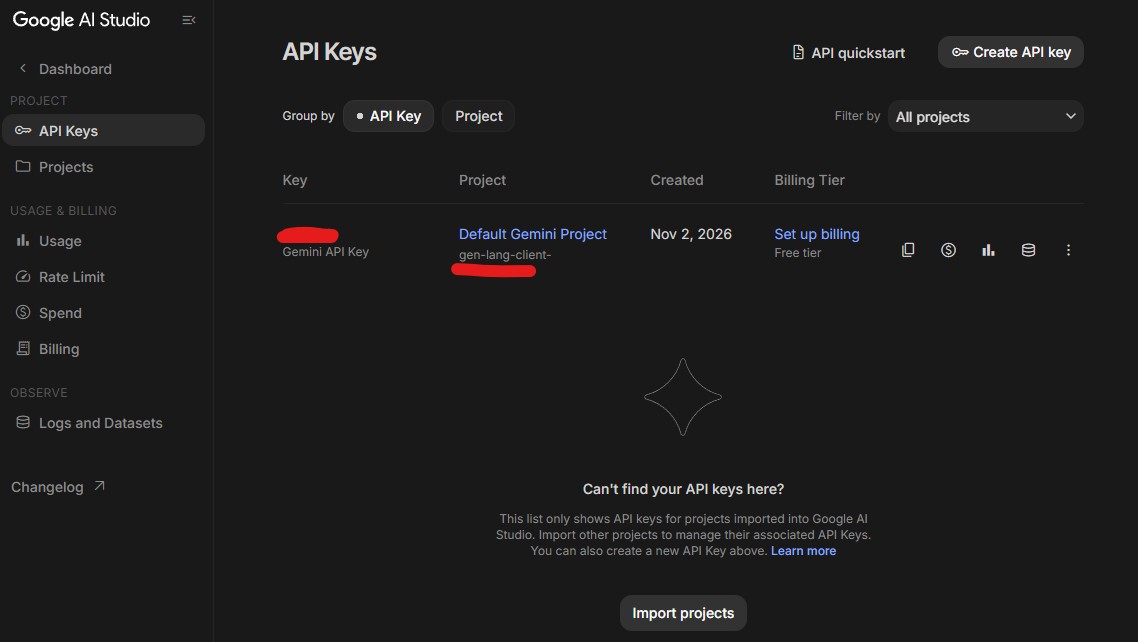
The screenshot shows the API Keys dashboard after creating the key. The setup itself was not too bad; most of the investigation came afterward, when model requests started returning errors.
Checking the OpenClaw Docker environment
We accessed the ED-CLAWBOX through SSH:
ssh pi@clawbox
To identify the OpenClaw container, we used:
docker ps -a
The installed runtime used the following image:
ghcr.io/x-aijishu/openclaw-runtime:latest
During testing, the container ID was:
0d816a331620
Container IDs are installation-specific and may change if a container is recreated. Readers should substitute their own container ID or name in the following commands.
With the OpenClaw container running, we used its interactive command-line authentication flow to add the Google credential:
docker exec -it 0d816a331620 openclaw models auth add
We selected Google and supplied the API key through the interactive prompts. Substitute your own container ID in this command. Keep the key private when sharing commands or screenshots.
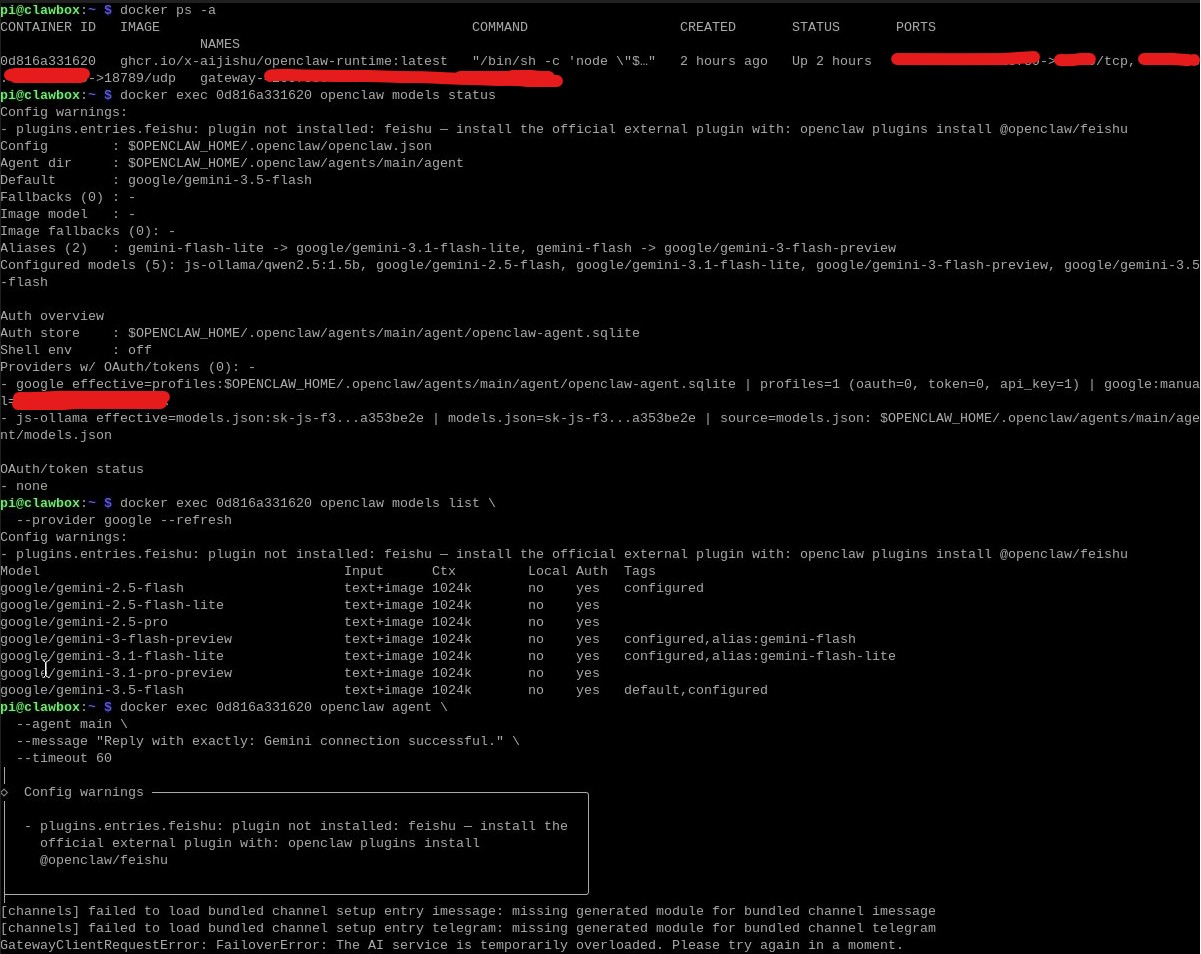
We inspected the existing model configuration with:
docker exec 0d816a331620 openclaw models status
We also listed the Google models recognized by OpenClaw:
docker exec 0d816a331620 openclaw models list \
  --provider google --refresh
The output identified several Gemini models, including Gemini 2.5 Flash, Gemini 3 Flash Preview, Gemini 3.1 Flash Lite, and Gemini 3.5 Flash. OpenClaw also retained the locally configured Qwen model.
The authentication overview confirmed that a Google API key profile was configured. This status did not, by itself, guarantee that Google's API would successfully generate a response.
Initial Gemini connection attempts
To determine whether Gemini could respond through OpenClaw, we issued a simple agent request:
docker exec 0d816a331620 openclaw agent \
  --agent main \
  --message "Reply with exactly: Gemini connection successful." \
  --timeout 60
The initial tests were unsuccessful.
Depending on the model selected, OpenClaw returned errors indicating that the requested model could not be found or that the AI service was temporarily overloaded.
For example, some requests returned:
GatewayClientRequestError: FailoverError:
The AI service is temporarily overloaded.
Please try again in a moment.
We also received warnings concerning missing Feishu, Telegram, and iMessage components. These were separate from the Google API errors and did not prevent subsequent successful Gemini requests.
To investigate the failures, we examined the gateway logs:
docker exec 0d816a331620 openclaw logs \
  --limit 100 --plain
The logs showed HTTP 404 and 503 responses from Google's API. In particular, Google reported that some Gemini 2.5 models were no longer available to new users, while other models returned temporary high-demand errors.
We have omitted the complete gateway log output because it contains diagnostic information that is not necessary for reproducing the setup.
Testing Google's Gemini API independently
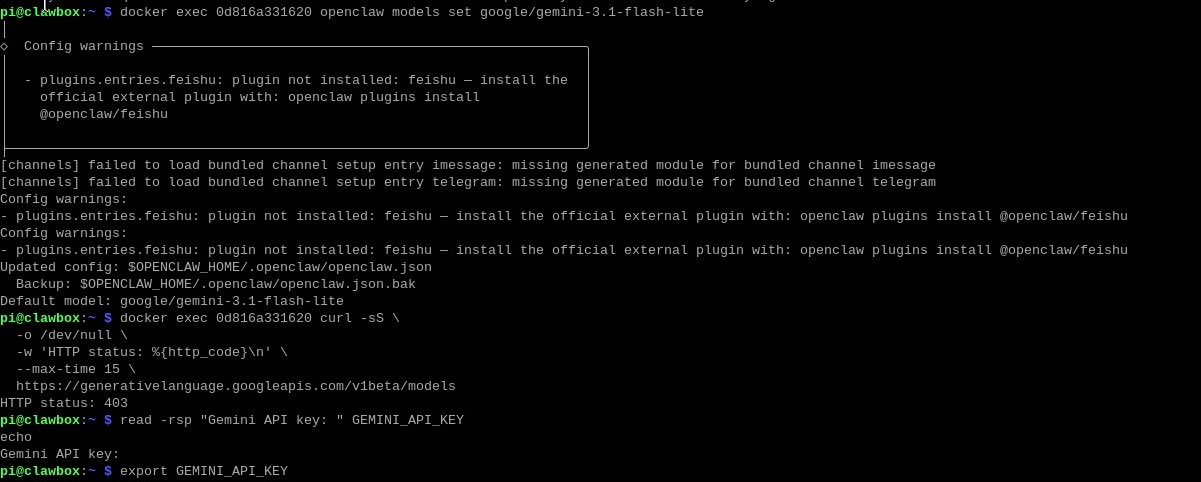
To distinguish Google API problems from OpenClaw configuration issues, we tested Google's endpoint directly from the ED-CLAWBOX.
We first confirmed that the required utilities were available:
docker exec 0d816a331620 sh -c \
  'command -v curl; command -v python3'
Both curl and Python 3 were installed.
Next, we checked connectivity to the Google API endpoint without supplying authentication credentials:
docker exec 0d816a331620 curl -sS \
  -o /dev/null \
  -w 'HTTP status: %{http_code}\n' \
  --max-time 15 \
  https://generativelanguage.googleapis.com/v1beta/models
The unauthenticated request returned HTTP 403. That showed that the endpoint was reachable; it did not establish that an authenticated generation request would work.
To perform an authenticated test without exposing the API key in the command itself, we entered it into a shell variable:
read -rsp "Gemini API key: " GEMINI_API_KEY
echo
export GEMINI_API_KEY
The API key was entered interactively rather than written directly into the script.
We then queried Google's model catalog:
curl -sS --max-time 20 \
  -H "x-goog-api-key: $GEMINI_API_KEY" \
  "https://generativelanguage.googleapis.com/v1beta/models?pageSize=100" \
  | python3 -c 'import json,sys; d=json.load(sys.stdin); print("API error:",d["error"]["message"]) if "error" in d else print("\n".join(m["name"] for m in d.get("models",[]) if "generateContent" in m.get("supportedGenerationMethods",[])))'
This request succeeded and returned Google's catalog of models supporting content generation.
The available entries included Gemini 3.5 Flash, Gemini 3.5 Flash Lite, Gemini 3.6 Flash, Gemini 3.7 Flash, and Gemini 3.8 Flash, among other models.
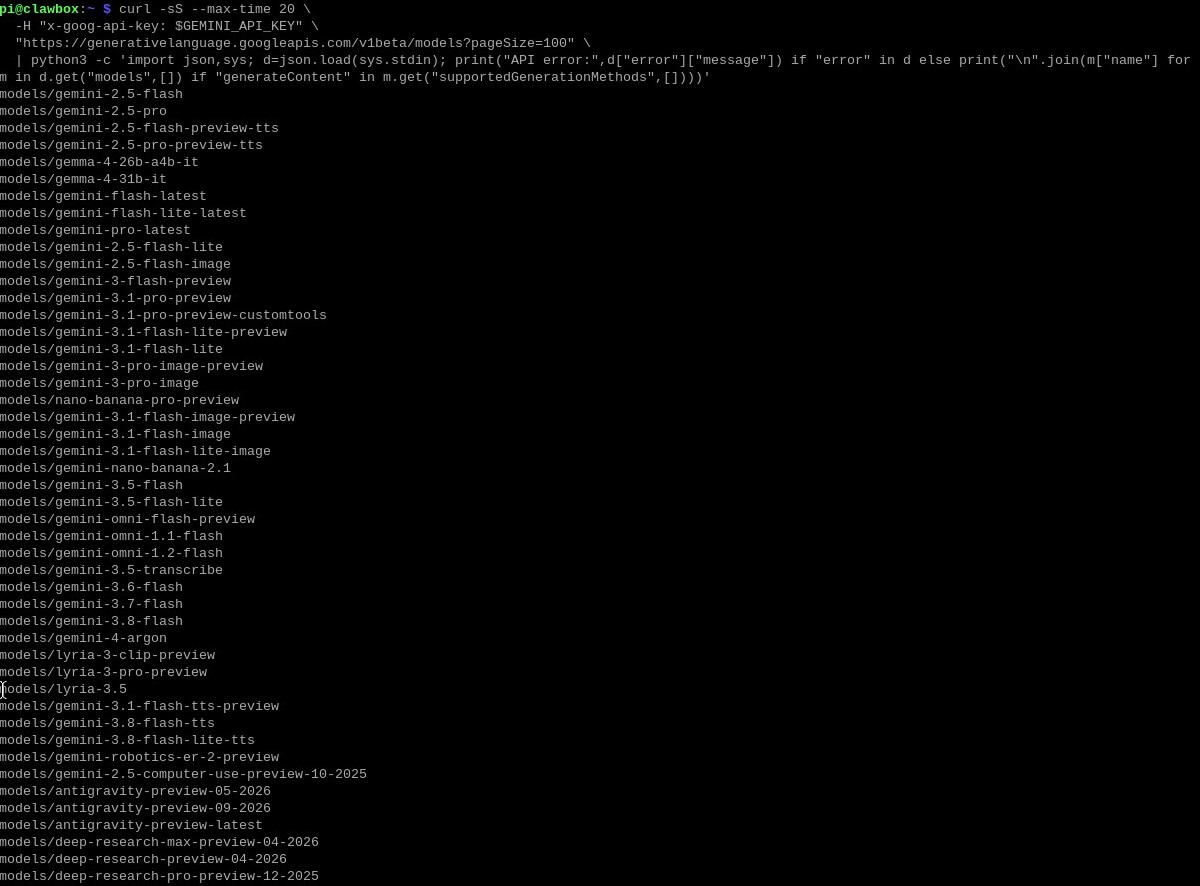
This confirmed that Google accepted our API credentials. However, a model appearing in the catalog did not necessarily mean that generation requests would succeed.
Comparing Gemini model availability and response times
To find a model that could successfully respond to API requests, we developed a small Python benchmark.
The script submitted one short text-generation request to each model, measured the elapsed time, recorded the HTTP response, and inserted a two-second delay between tests.
We tested the following models:
- Gemini 3.5 Flash Lite
- Gemini 3.5 Flash
- Gemini 3.6 Flash
- Gemini 3.7 Flash
- Gemini 3.8 Flash
The program used Python's urllib.request module and sent requests to Google's generateContent endpoint.
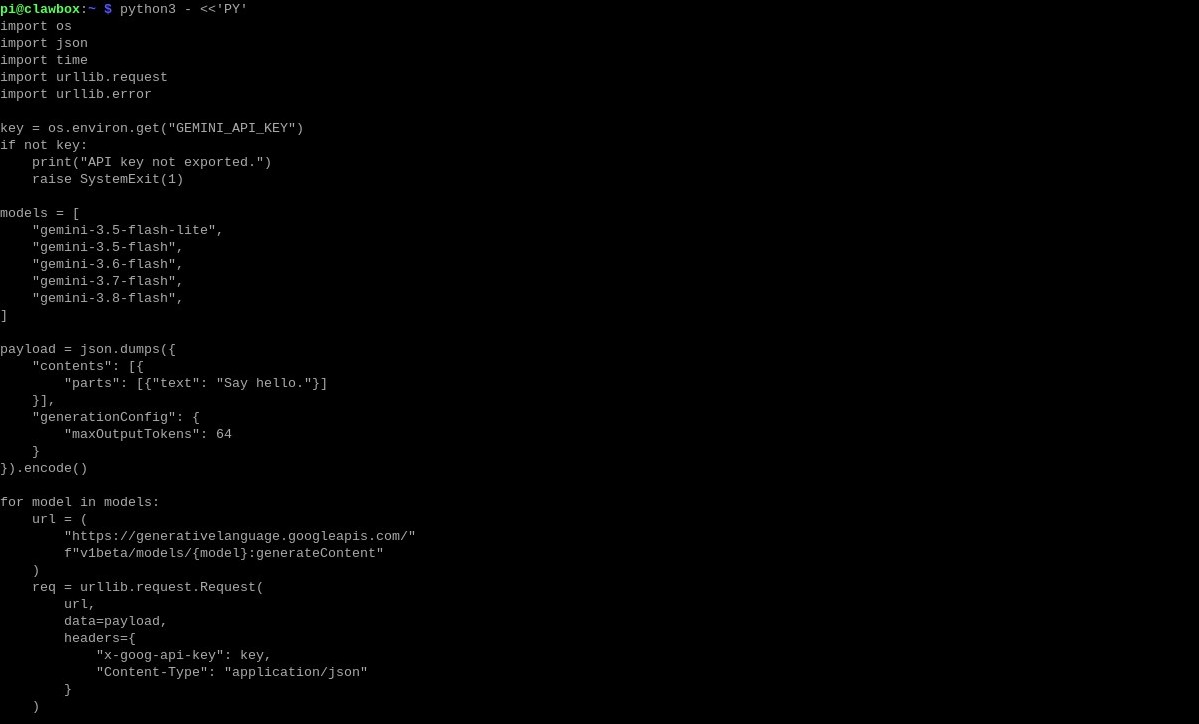
The recorded results from the final screenshot were:
| Gemini model | HTTP status | Response time |
|---|---|---|
| Gemini 3.5 Flash Lite | 200 | 0.55 seconds |
| Gemini 3.5 Flash | 200 | 18.75 seconds |
| Gemini 3.6 Flash | 200 | 3.66 seconds |
| Gemini 3.7 Flash | 503 | 0.74 seconds |
| Gemini 3.8 Flash | 503 | 0.81 seconds |
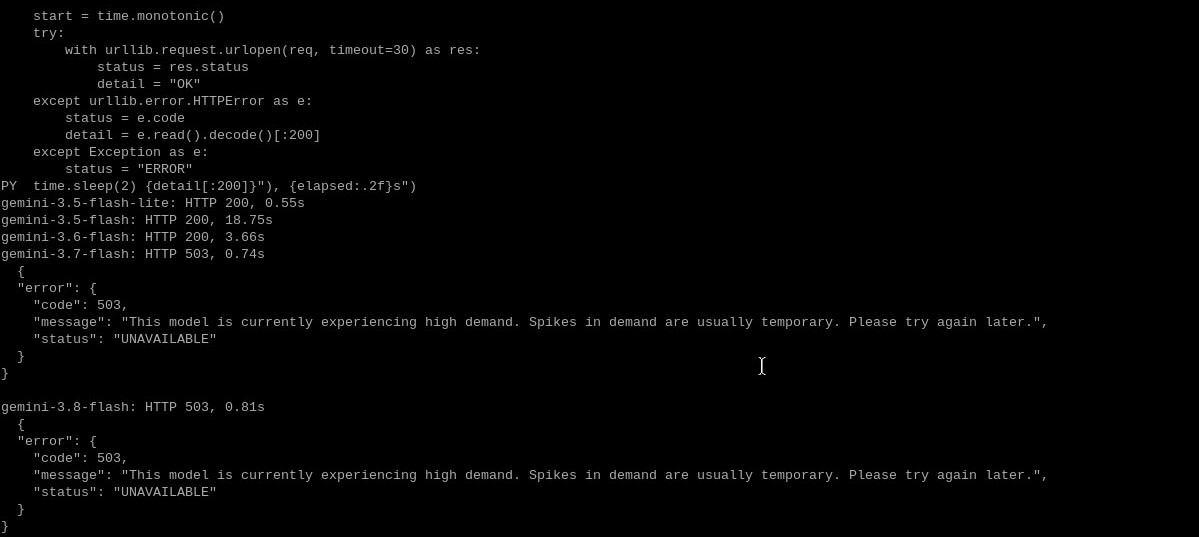
These results represent individual requests during our testing session, not an extensive performance benchmark. Response times may vary substantially with server availability, request complexity, and API service conditions.
Nevertheless, the results helped us identify models that could successfully process requests from our ED-CLAWBOX.
Verifying the streaming API
To check the streaming request path separately, we also tested the streamGenerateContent endpoint directly.
We used the following command:
curl -sS --max-time 30 \
  -H "x-goog-api-key: $GEMINI_API_KEY" \
  -H "Content-Type: application/json" \
  "https://generativelanguage.googleapis.com/v1beta/models/gemini-3.5-flash:streamGenerateContent?alt=sse" \
  -d '{"contents":[{"parts":[{"text":"Say hello."}]}]}'
The request succeeded, returning a response similar to:
Hello! How can I help you today?
The response also contained usage metadata, a completion status, and model information.
Although we requested gemini-3.5-flash, Google reported gemini-3.6-flash in the modelVersion field.
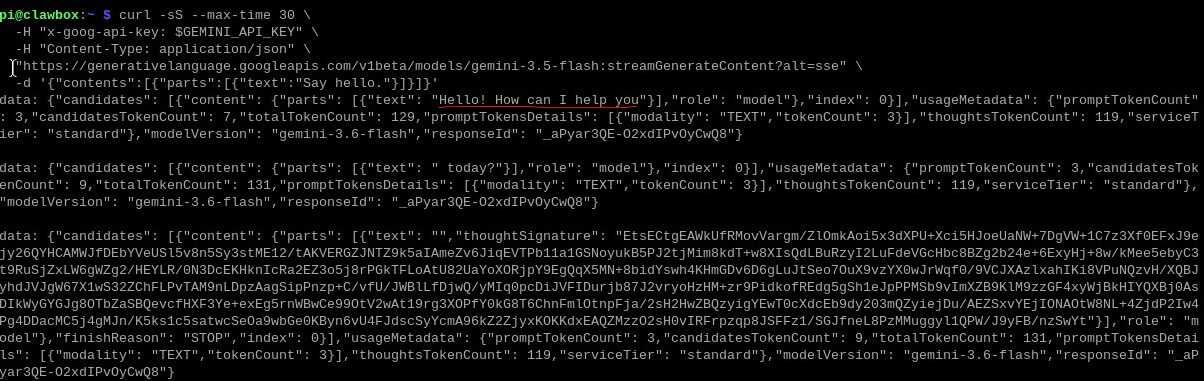
The successful streaming test established that Google's API could handle both ordinary and streaming generation requests using our credentials.
However, OpenClaw still encountered errors when running its agent through the existing session.
Checking OpenClaw's stored credentials
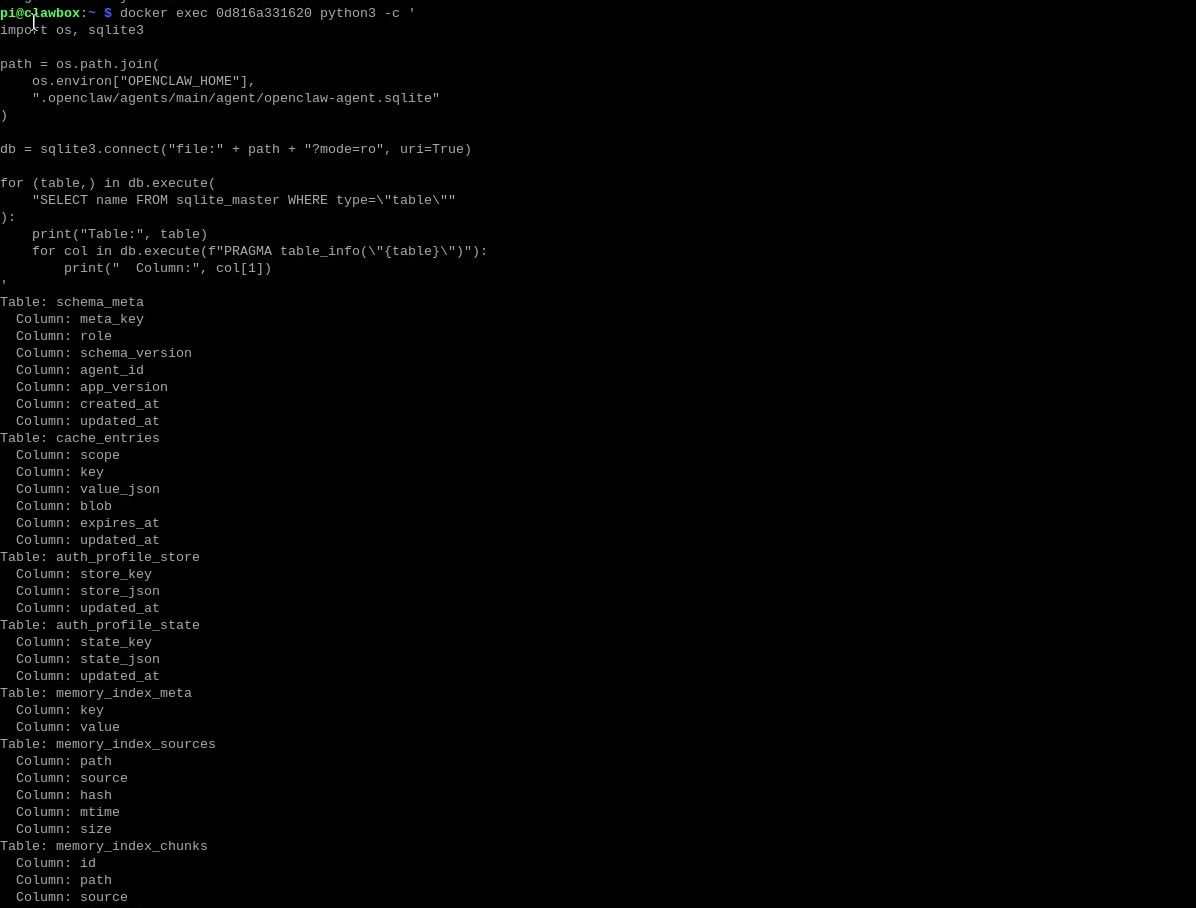
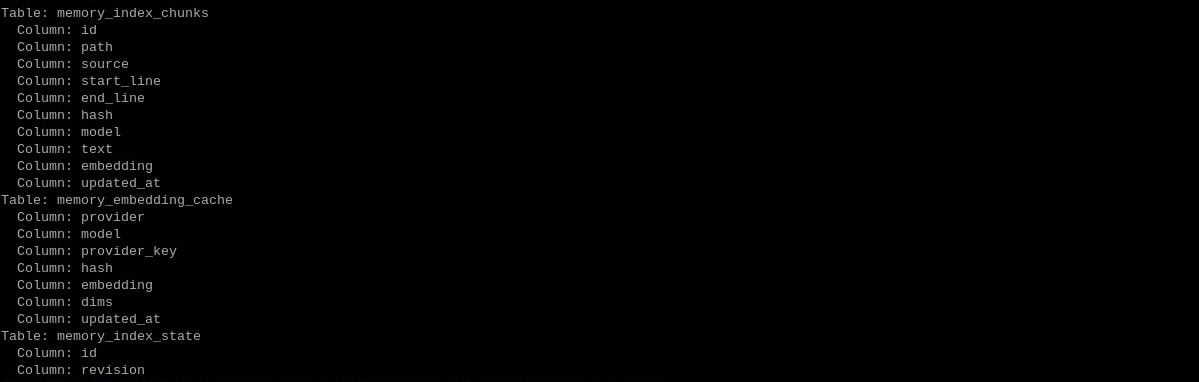
With direct API requests working, we checked whether OpenClaw was using the same credential. Its model-status output pointed to a local SQLite authentication database. We inspected its structure in read-only mode; the screenshots below show table and column names, without exposing credential values.
Our session notes record that a separate local comparison confirmed that OpenClaw and the direct API tests used the same Google API key. That comparison is not shown in these screenshots. It made a credential mismatch less likely, but did not establish why the agent requests behaved differently.
This database check was a troubleshooting step, rather than a requirement for normal setup. We continued by selecting a model that had responded to the direct tests and trying a fresh agent session.
Setting Gemini 3.5 Flash as the default model
After observing successful direct API responses from Gemini 3.5 Flash, we selected it as OpenClaw's default model:
docker exec 0d816a331620 openclaw models set google/gemini-3.5-flash
OpenClaw confirmed the configuration change:
Updated config: $OPENCLAW_HOME/.openclaw/openclaw.json
Default model: google/gemini-3.5-flash
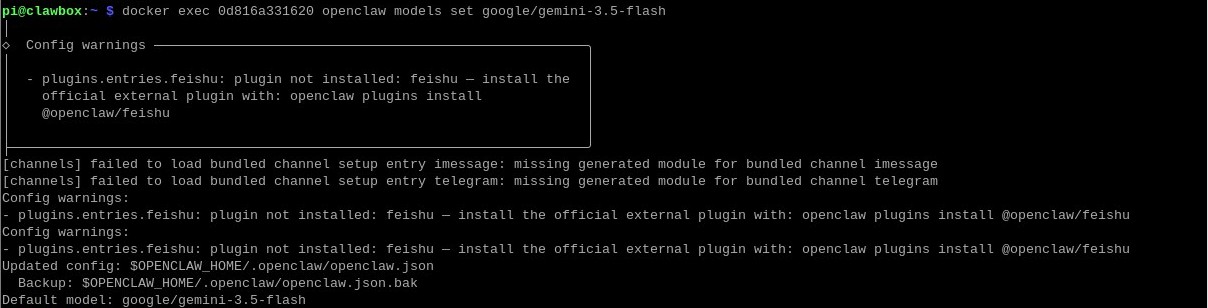
Changing the default model alone did not immediately resolve the service-overloaded error in our existing agent session.
We therefore examined the available command-line options for executing an agent.
Starting a fresh OpenClaw agent session
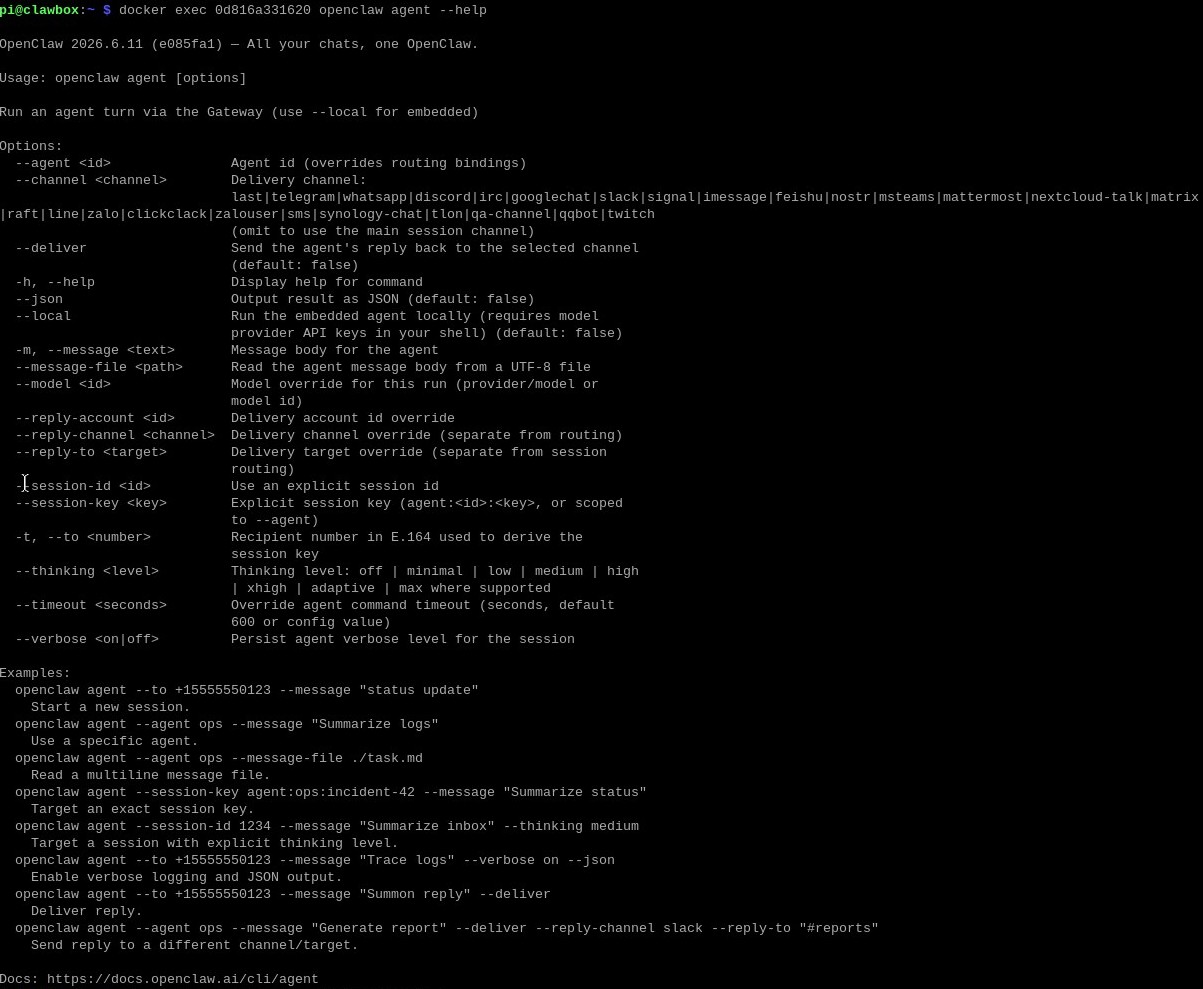
The agent's command-line options can be displayed using:
docker exec 0d816a331620 openclaw agent --help
The installed OpenClaw version supported several useful parameters, including:
--session-idto identify an agent session--modelto override the language model for a request--thinkingto specify the thinking level--timeoutto control the request timeout
We then performed another Gemini test using a fresh session, an explicit model selection, and thinking disabled:
docker exec 0d816a331620 openclaw agent \
  --agent main \
  --session-id gemini-diagnostic-001 \
  --model google/gemini-3.5-flash \
  --thinking off \
  --message "Reply with exactly: Gemini connection successful." \
  --timeout 60
This time, OpenClaw returned:
Gemini connection successful.
The test confirmed that OpenClaw could return a response with google/gemini-3.5-flash explicitly selected. The earlier direct streaming response reported a different modelVersion, so the requested identifier alone does not establish the underlying model version.
We changed both the session and thinking configuration, so this result does not isolate which change resolved the earlier issue. Nevertheless, it established a working configuration without requiring an OpenClaw software upgrade.
Requesting system information through Gemini
With the API connection working, we proceeded to a more practical test.
Instead of asking Gemini to generate a simple text response, we requested system information from the local ED-CLAWBOX environment.
The prompt instructed the OpenClaw agent to run two read-only Linux commands:
uptime -p
free -h
These commands report system uptime and memory information.
We submitted the request through OpenClaw:
docker exec 0d816a331620 openclaw agent \
  --agent main \
  --session-id gemini-diagnostic-001 \
  --model google/gemini-3.5-flash \
  --thinking off \
  --message "Use your local execution tool to run uptime -p and free -h. Report the actual values. Do not estimate or modify anything." \
  --timeout 120
The agent returned:
uptime -p:
up 1 hour, 48 minutes
And the following memory information:
               total    used    free   shared  buff/cache  available
Mem:           4.0Gi   1.5Gi   1.1Gi   106Mi   1.5Gi       2.4Gi
Swap:          2.0Gi      0B   2.0Gi
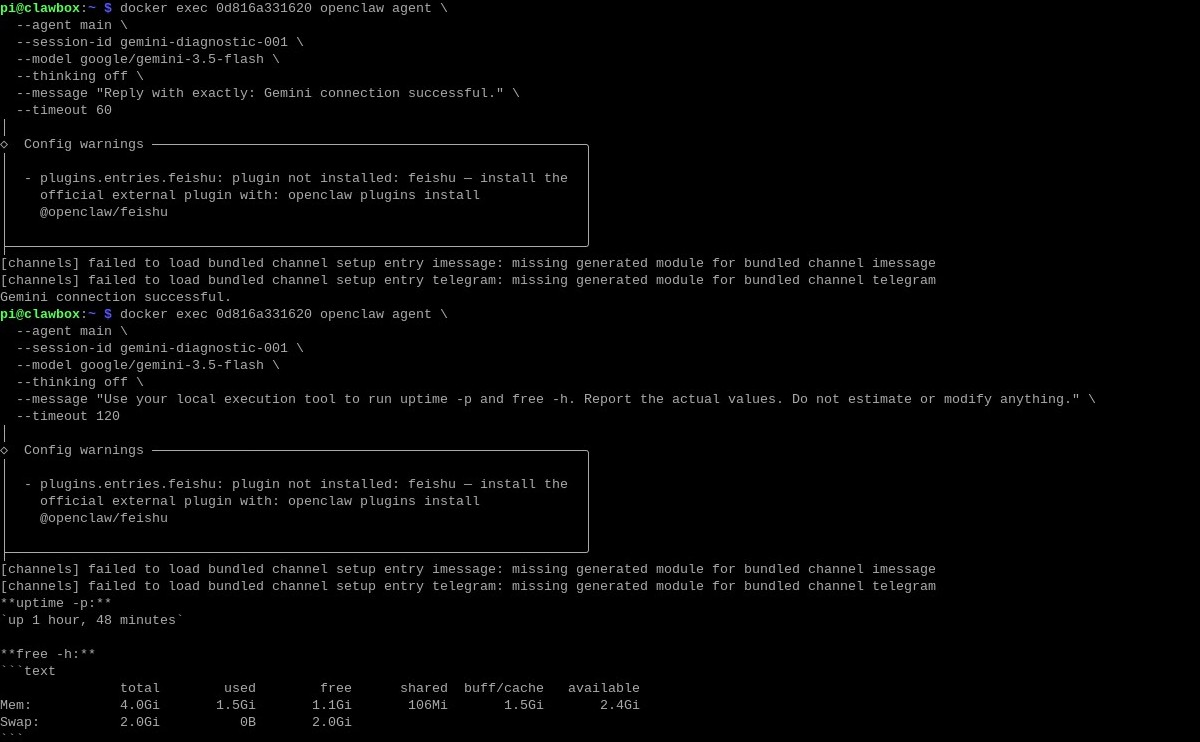
The returned information demonstrates that OpenClaw responded to a request for local system data. However, the corresponding tool execution trace was not independently verified during this session.
For a stronger demonstration, the reported values should be compared with commands executed directly over SSH, or with OpenClaw's recorded tool execution events.
This would confirm whether the agent accessed the local execution tool rather than producing plausible system information.
Observations and limitations
The most useful troubleshooting step was testing Google's API directly: a listed model and a configured credential did not guarantee a successful generation request. Our response-time measurements describe individual requests during this session, rather than sustained performance.
The missing-channel warnings remained visible during successful requests, so they did not prevent the Gemini connection in our test.
Configuration note: Our session notes record that the OpenClaw gateway logs reported that a device-authentication bypass setting was enabled for the Control UI. This should be reviewed before exposing the interface beyond a trusted local network.
A working connection, and what comes next
Our first Gemini API setup was relatively straightforward. Finding a working model and getting a response through OpenClaw took more investigation: direct API tests helped separate model availability errors from the agent's behavior.
We eventually received a successful response with Gemini 3.5 Flash explicitly selected, a fresh session, and thinking disabled, without upgrading the installed OpenClaw runtime. Because these settings changed together, we cannot say which change made the difference.
The follow-up request returned uptime and memory information, but we still need to independently verify the local tool execution. That remains a useful next test, rather than a confirmed demonstration of device control.
In the next chapter, we'll move beyond the command line and explore OpenClaw's graphical interface through EDATEC's JishuShell environment, including its chat functionality, agent sessions, and integration with our configured Gemini model.