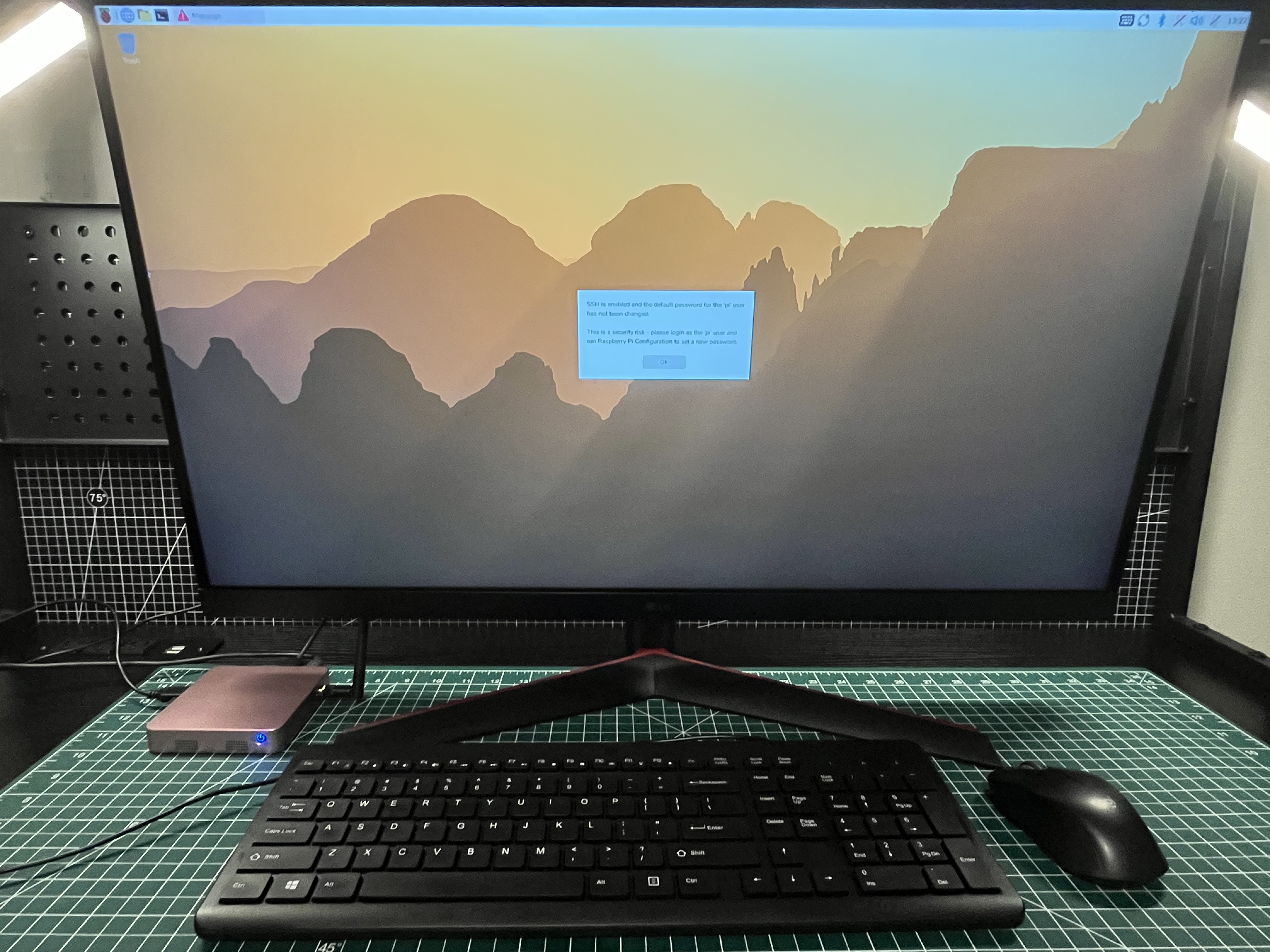
EDATEC provided the microSD card with the system image already installed. The company also notes that users can use their own microSD cards. The first boot felt familiar if you have used a Raspberry Pi before. After the Raspberry Pi OS splash screen, the ED-CLAWBOX landed on a working desktop rather than sending us through a lengthy welcome tour.
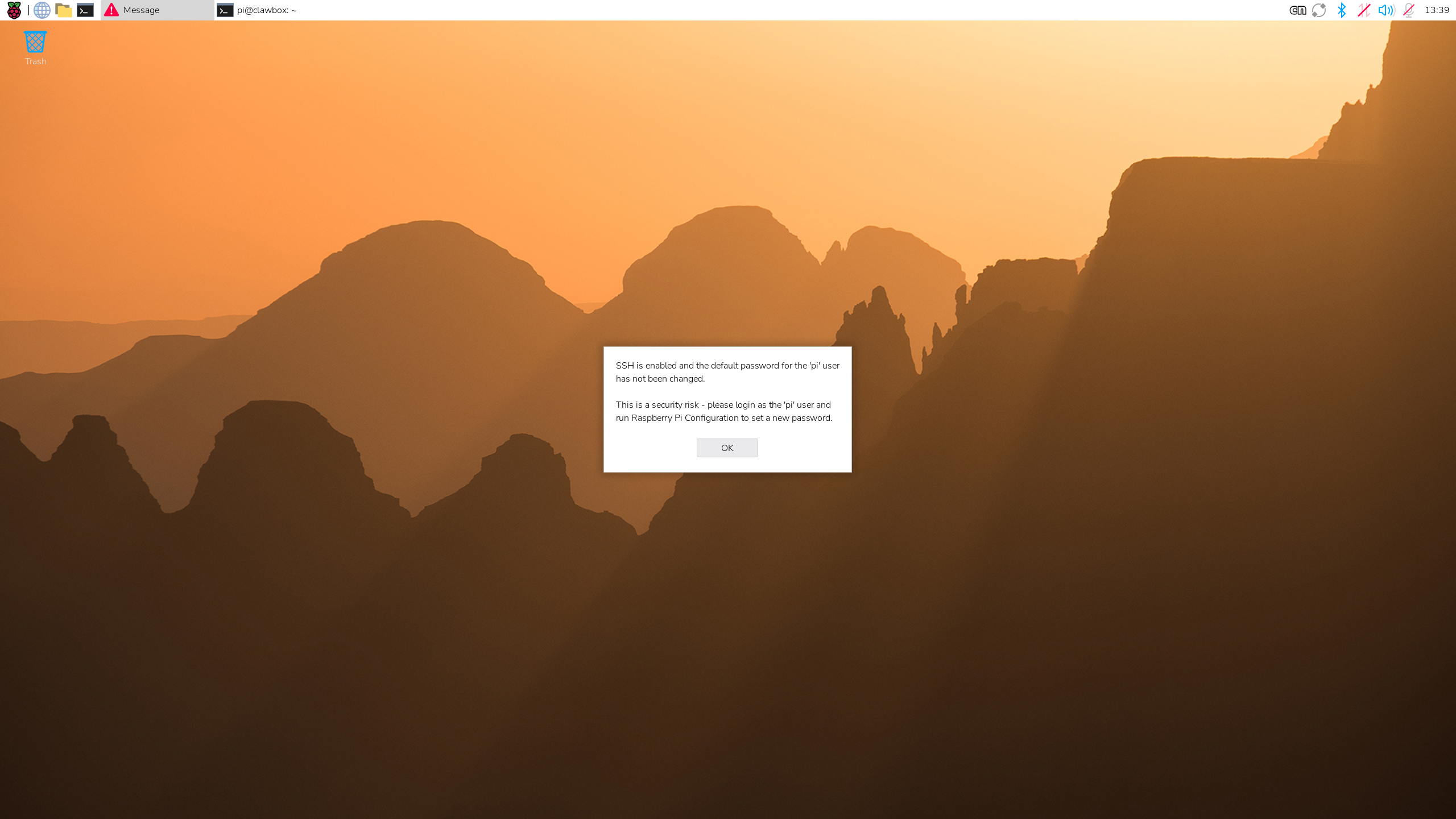
That convenience comes with one important caveat. A warning appeared immediately to say that SSH was enabled and the default password for the pi account had not been changed. It is a helpful warning, and one worth taking seriously before leaving the box connected to a network.
First five minutes
Change the password before exploring.
We changed the default account password and disabled SSH while it was not needed. The right choice for your setup may be different, but leaving a known default password in place is not.
Taking an offline baseline
Before connecting the ED-CLAWBOX to Wi-Fi, we wanted a snapshot of the system as it arrived. This gave us a chance to see which user accounts, services, network listeners, and software components were already present before an update changed anything.
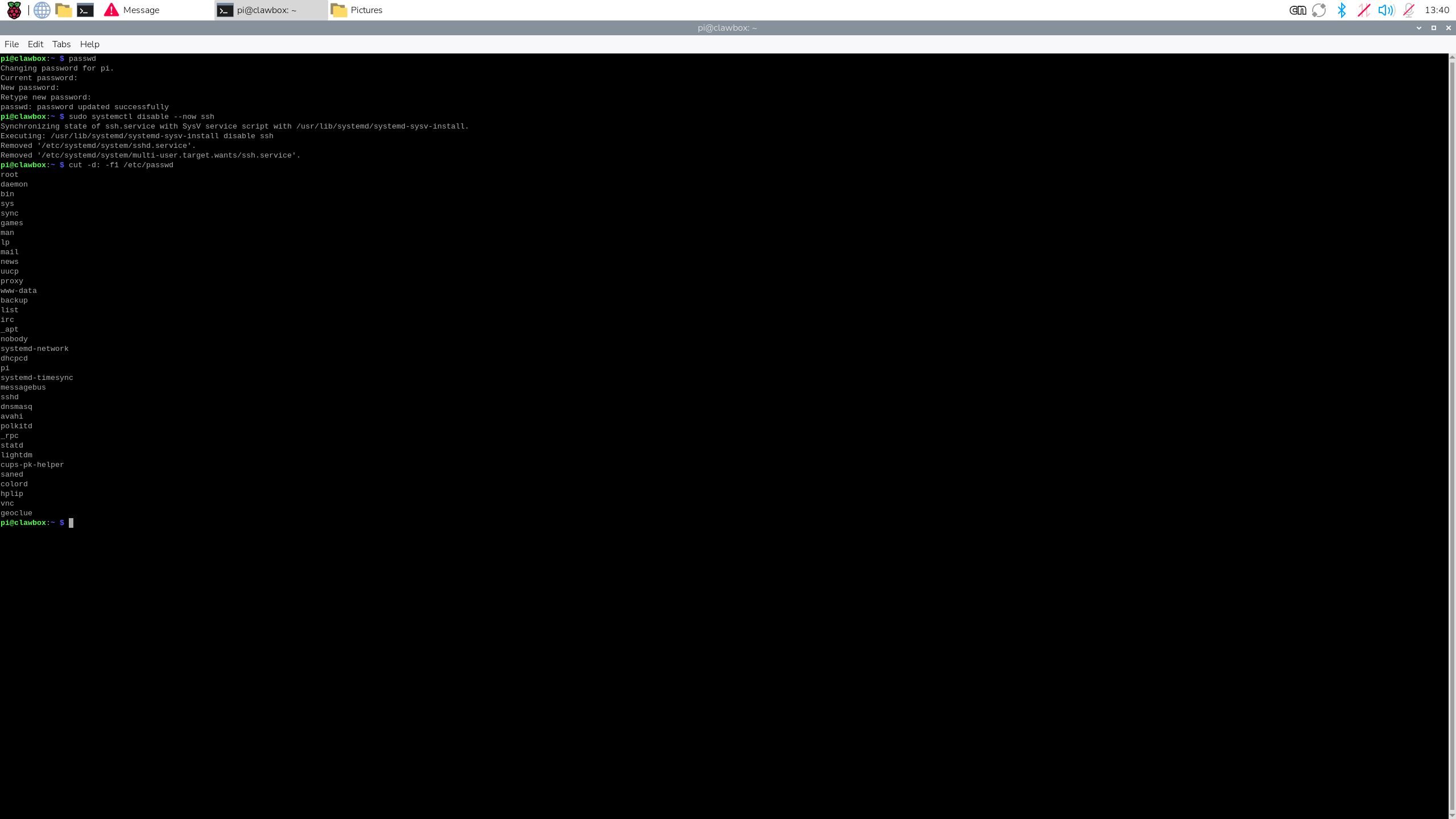
We started with the local account list. Most of the names belonged to ordinary Linux services, alongside the expected pi account. To record the factory image and check for any unexpected everyday users, we listed the account names stored in /etc/passwd, as shown below.
Services and listening ports
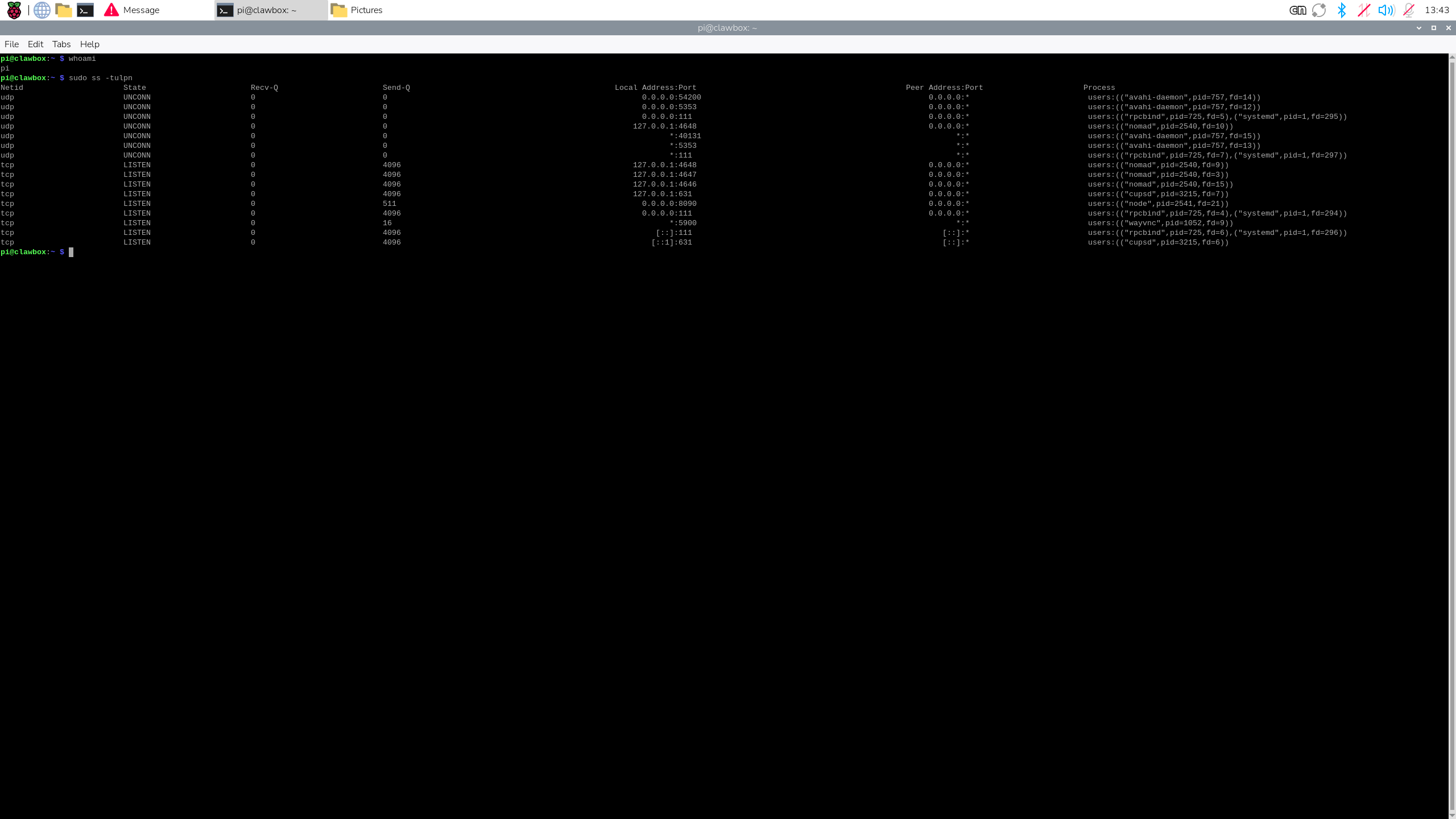
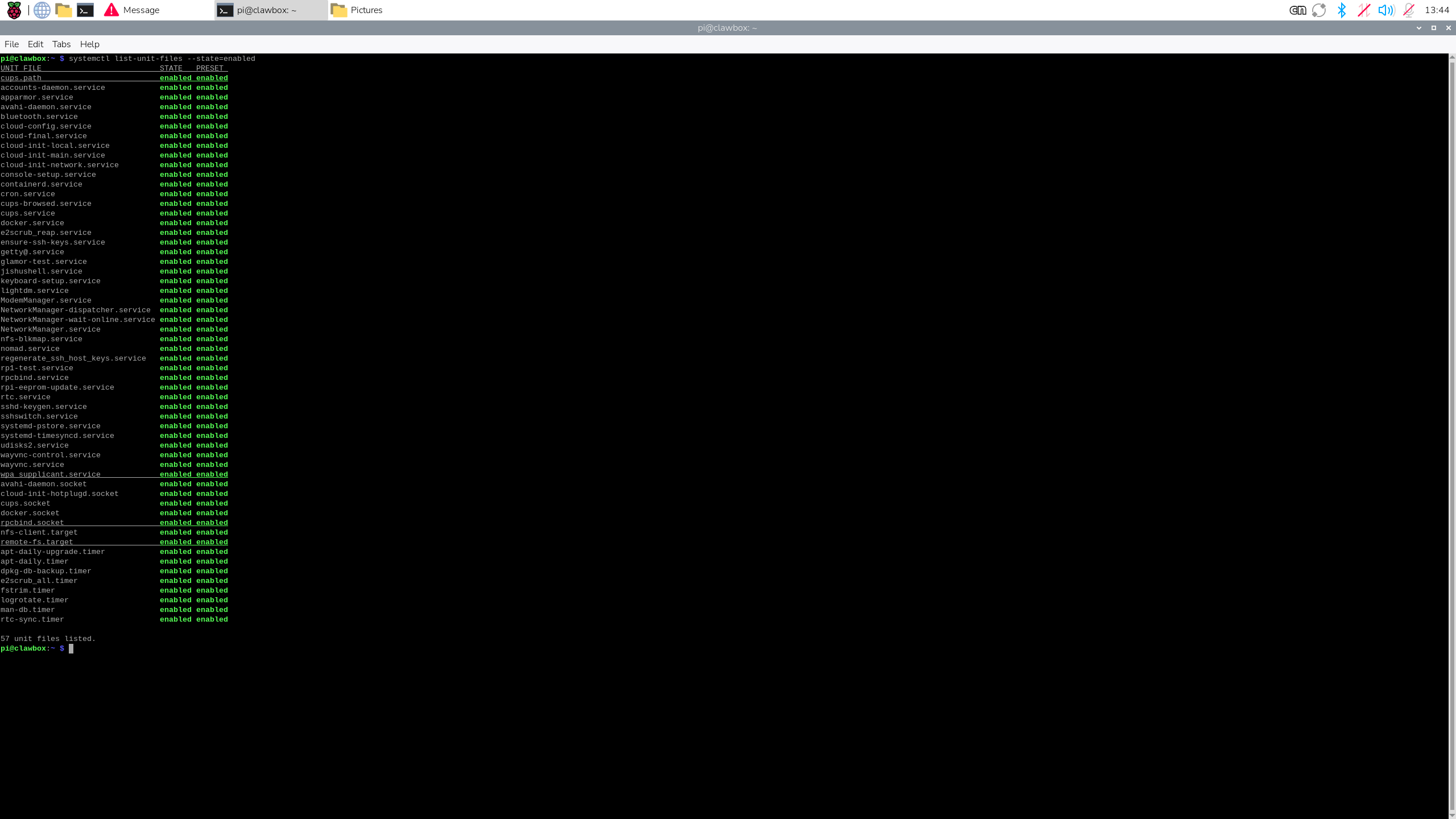
Next, we checked the enabled services and the ports listening on the machine. The results included familiar components for device discovery, printing, remote desktop, container management, and other desktop functions. Commands such as ss show which process owns a listening socket, which is more useful than seeing a port number by itself.
This check also gave us a useful baseline for later OpenClaw testing. If a new service or port appears after an agent is configured, we will have something to compare it with.
A preloaded OpenClaw container
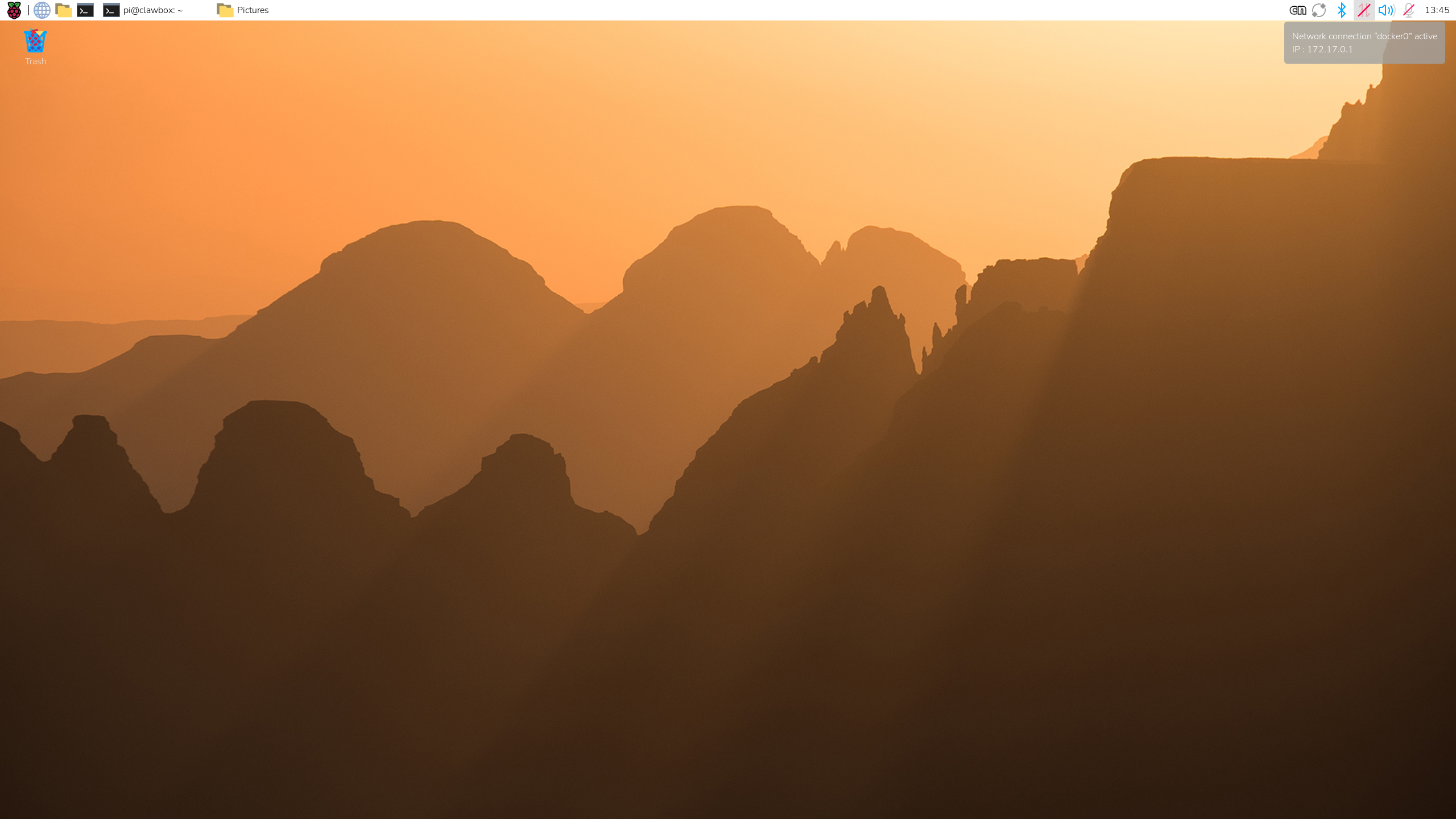
While we were checking the desktop, a notification appeared in the upper-right corner to say that the docker0 network connection was active. This is Docker’s local bridge network, not an indication that the ED-CLAWBOX had joined Wi-Fi.
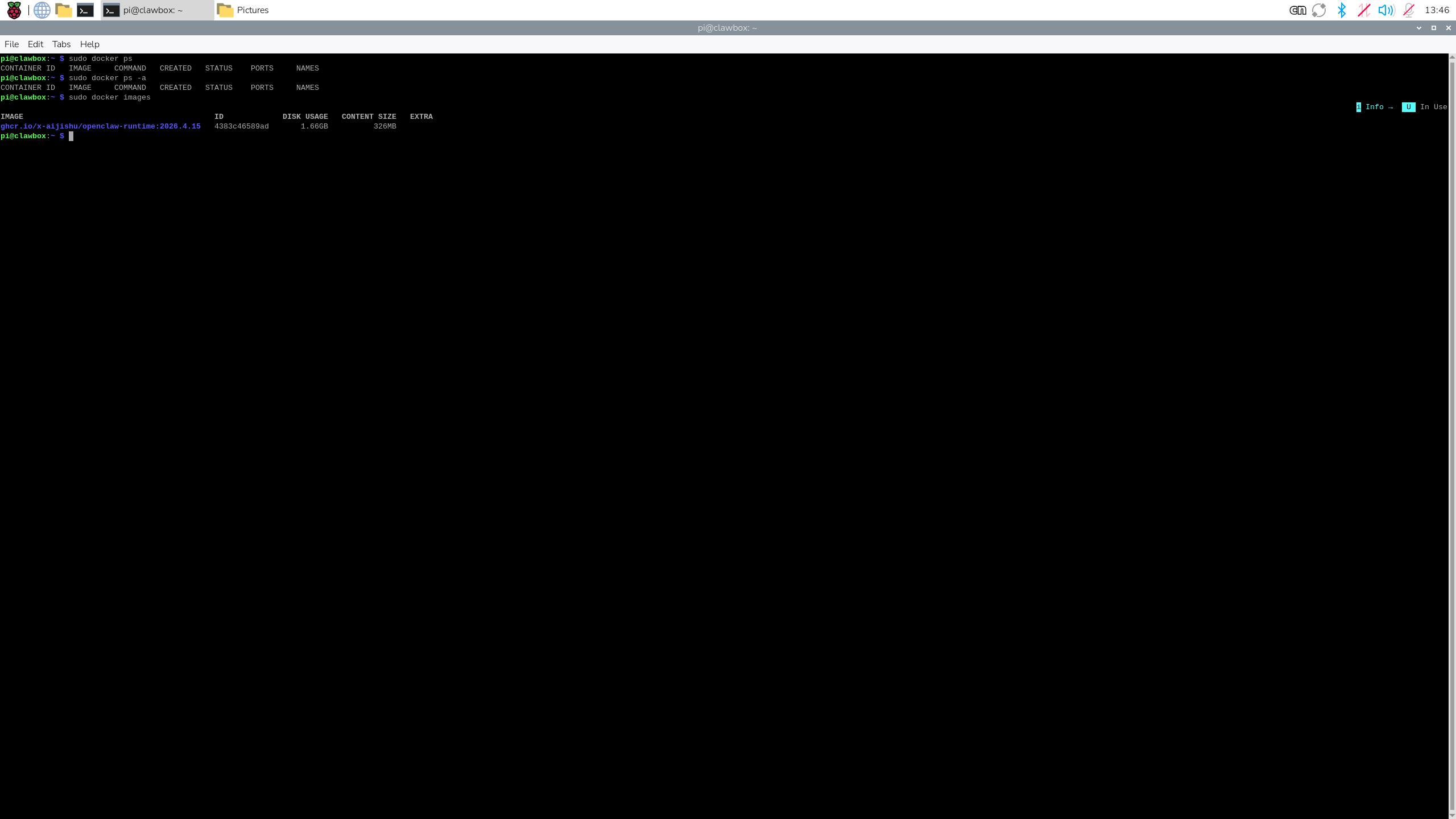
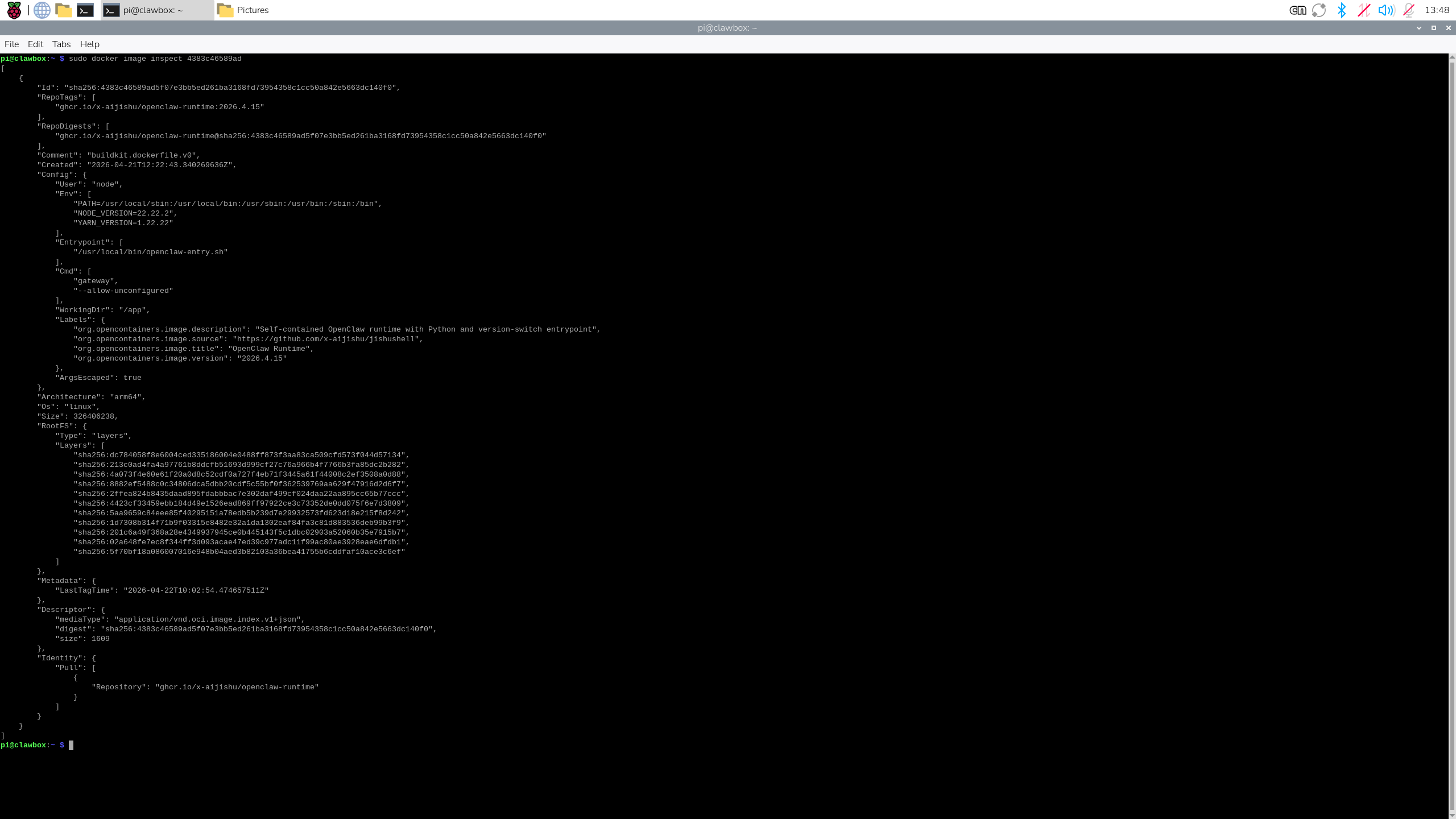
No containers were running at that moment, but Docker did contain a preloaded OpenClaw runtime image. We inspected its metadata to see what had been prepared. The image targeted the Arm64 platform, ran under a non-root node user, used /app as its working directory, and pointed to an OpenClaw entry script. That was enough to confirm that the factory image included an OpenClaw environment, while leaving the actual agent setup for the next chapter.
Storage, memory, and hardware
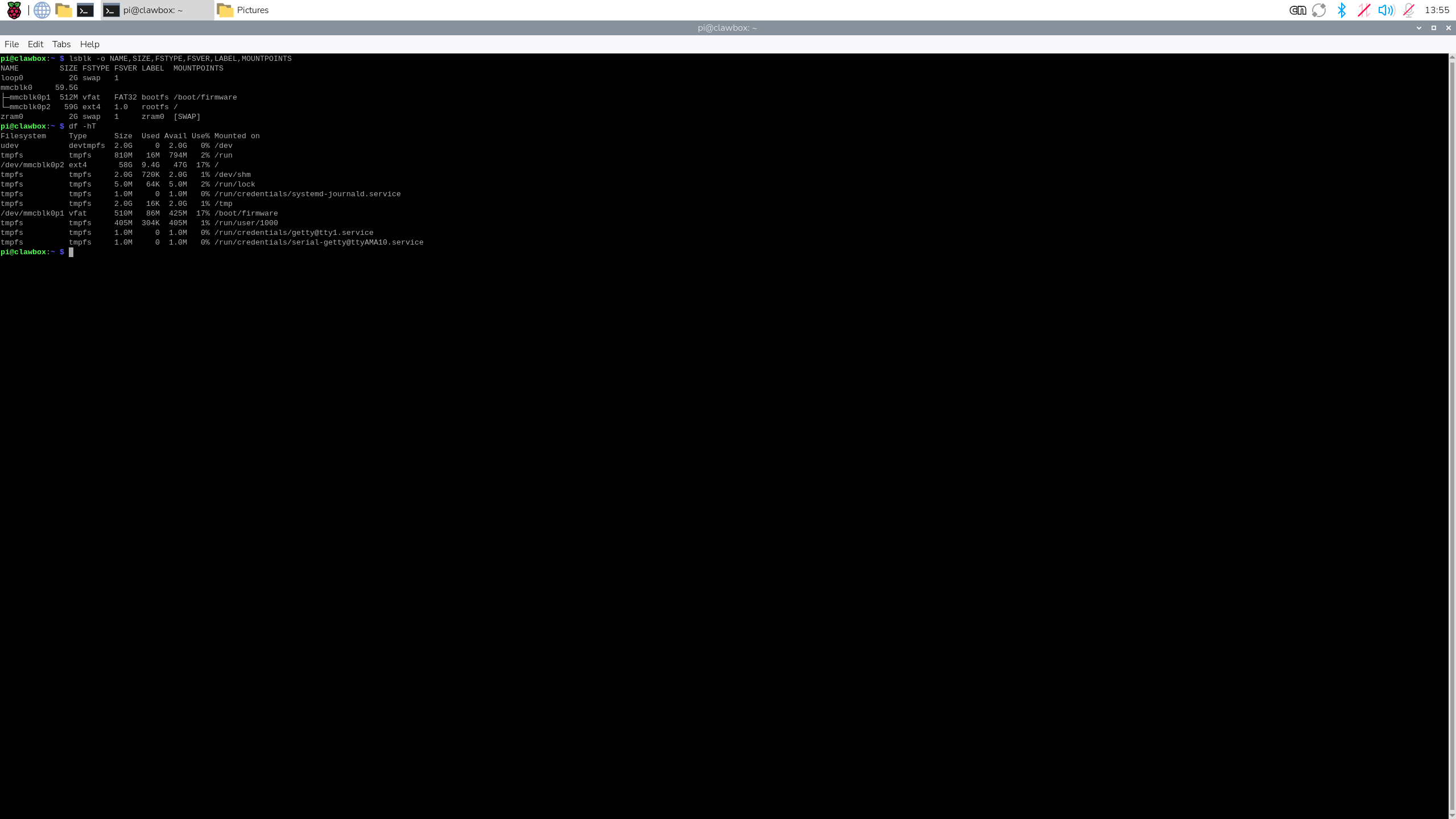
We also recorded the storage layout and basic hardware information. The included 64 GB microSD card appeared as roughly 59 GB before formatting overhead, with a small boot partition and a larger root filesystem. The system also had a 2 GB compressed swap device in memory.
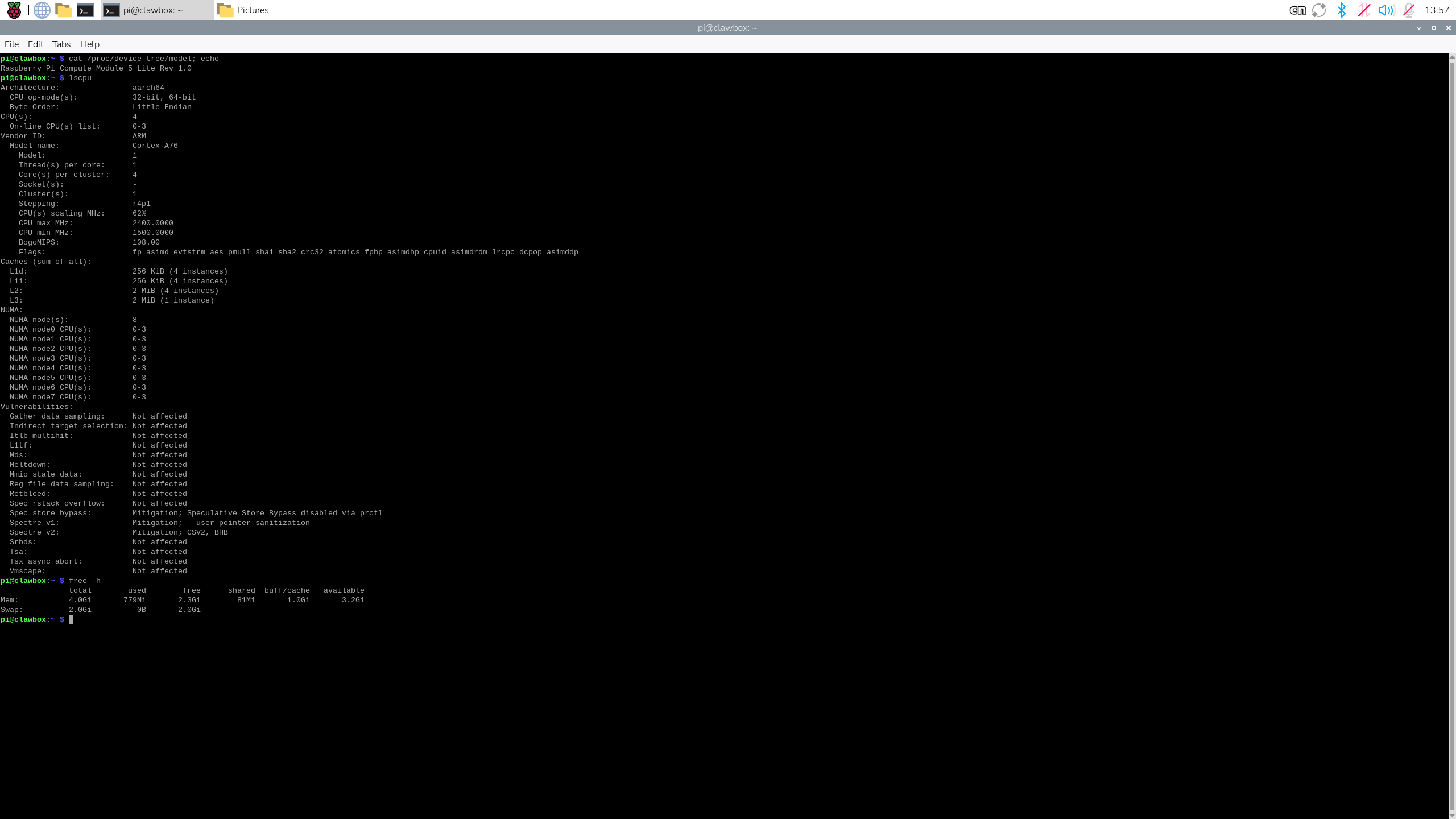
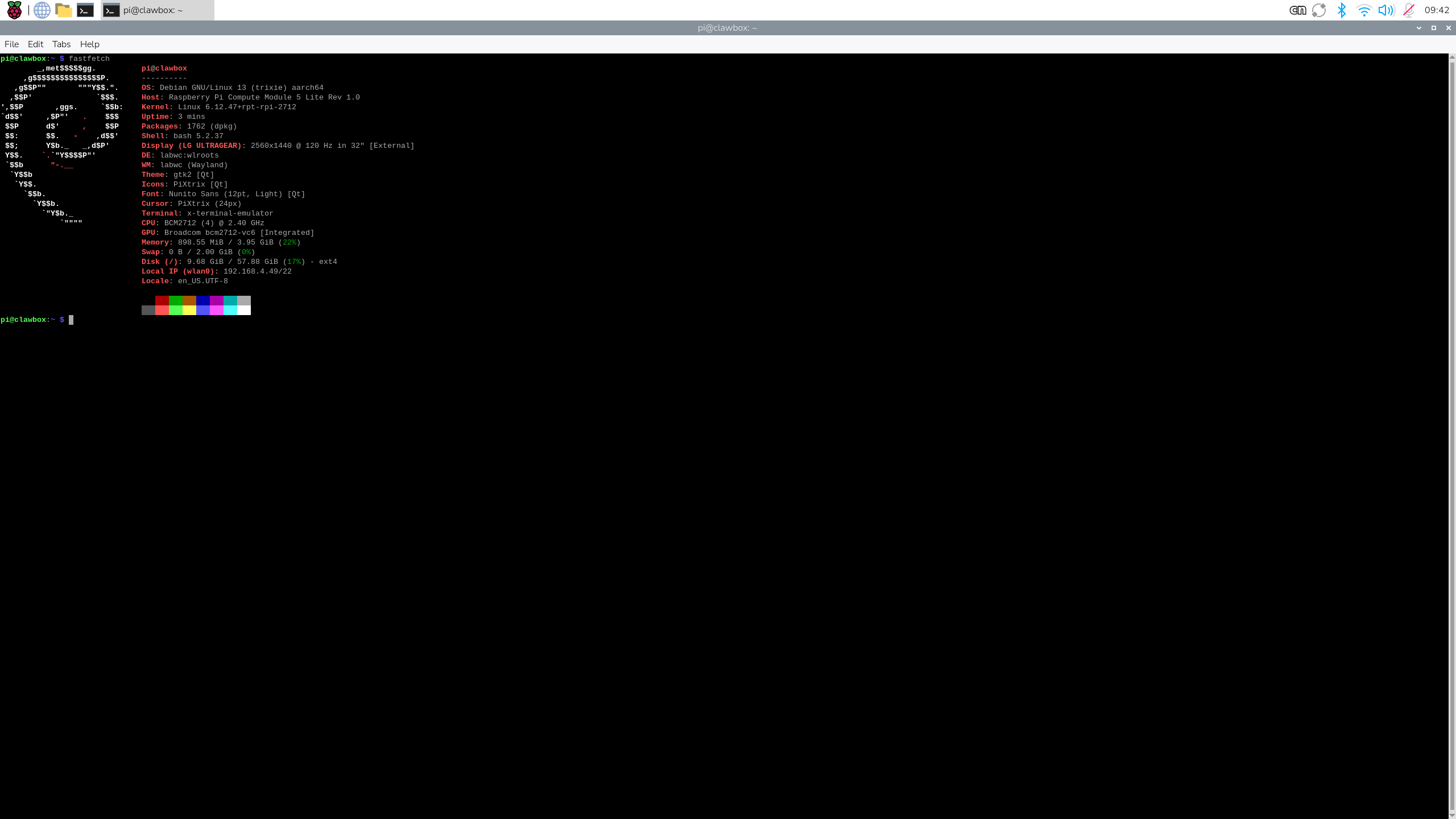
Our review unit identifies itself as a Raspberry Pi Compute Module 5 Lite Rev 1.0. It has a four-core BCM2712 processor and 4 GB of memory. These checks gave us a useful starting point for comparing memory use, storage use, and temperature once OpenClaw is running.
Linux version before the update
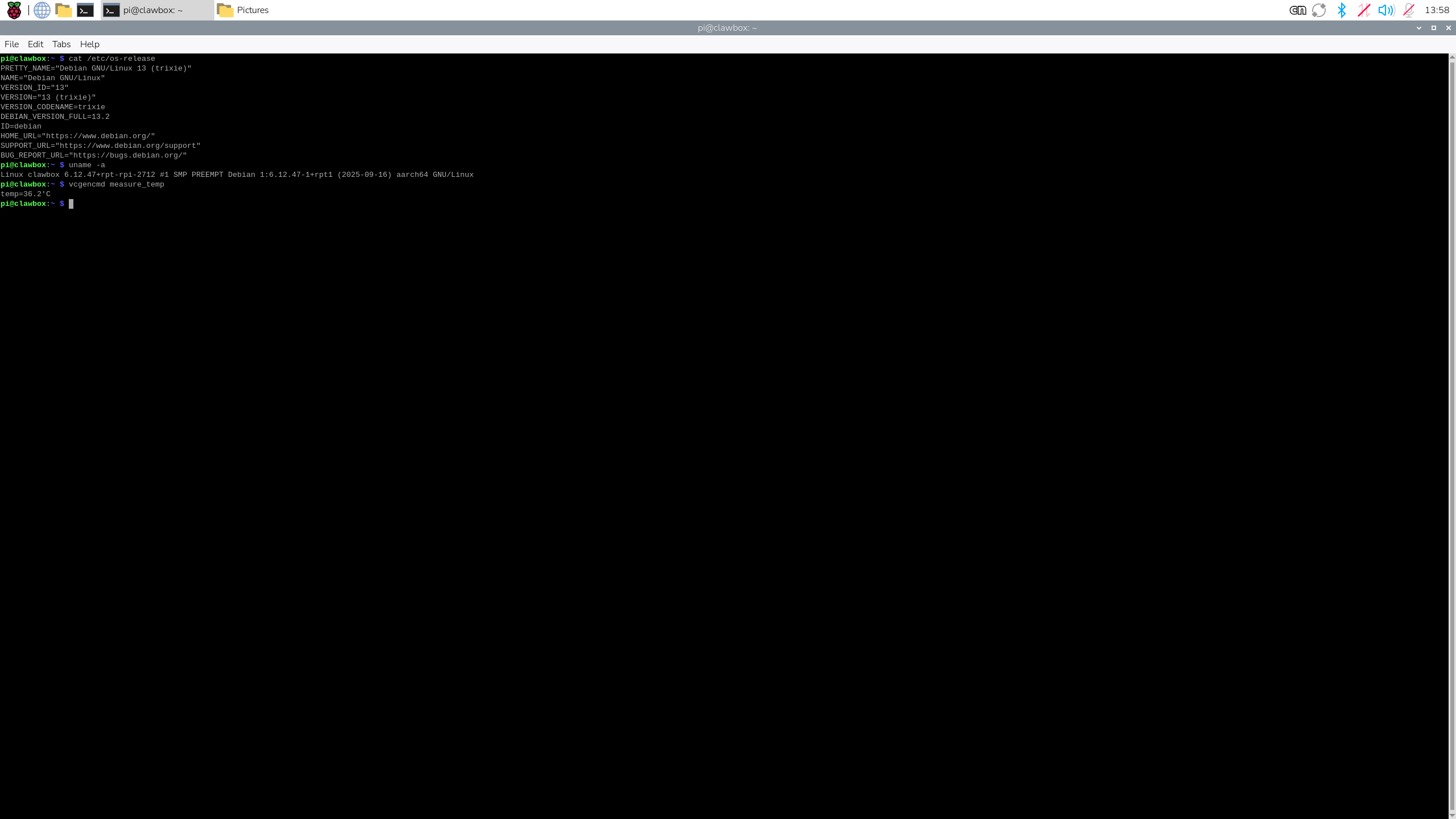
Before connecting to Wi-Fi, the system identified itself as Debian GNU/Linux 13.2, codenamed “trixie.” The running kernel was 6.12.47+rpt-rpi-2712. We also recorded an idle processor temperature of 36.2°C during this initial check.
Connecting and updating
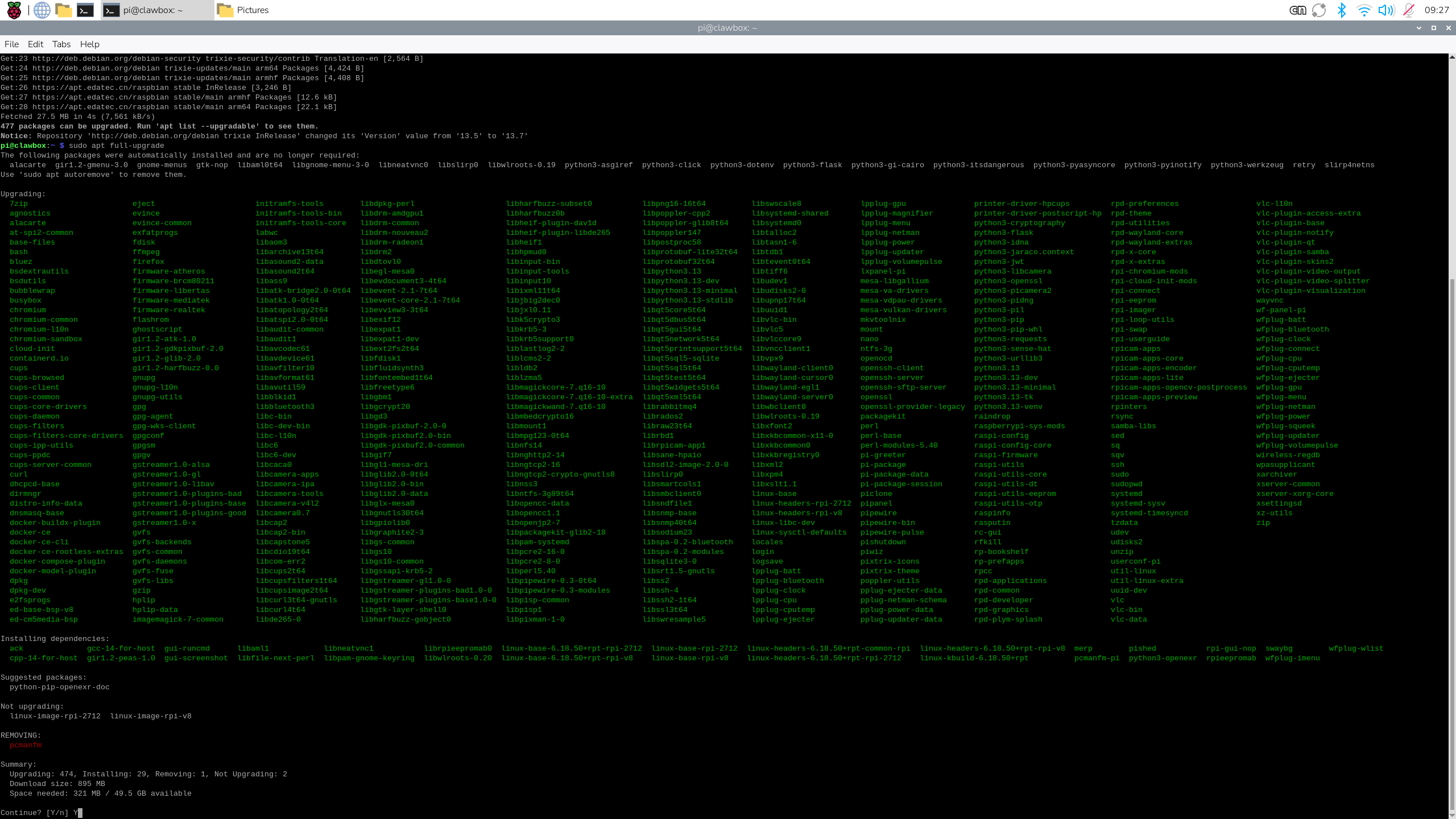
Only after capturing that baseline did we connect the ED-CLAWBOX to Wi-Fi and refresh the package lists. The installed image was ready to use, but it was not fully current. The package manager found hundreds of available updates on our unit.
The first maintenance pass was more than a quick background task. It included a prompt about a locally modified Chromium preference file and took some time to complete. This is not unusual for a device that has been imaged before reaching a reviewer, but it is worth accounting for during initial setup.
A clean summary after reboot
Once the update completed, we rebooted and checked the version again. The box was still running kernel 6.12.47+rpt-rpi-2712. The package manager listed newer 6.18.50 Raspberry Pi kernel packages as available, but they had not been installed as part of this update. In other words, the general software update completed, but the running kernel did not change.
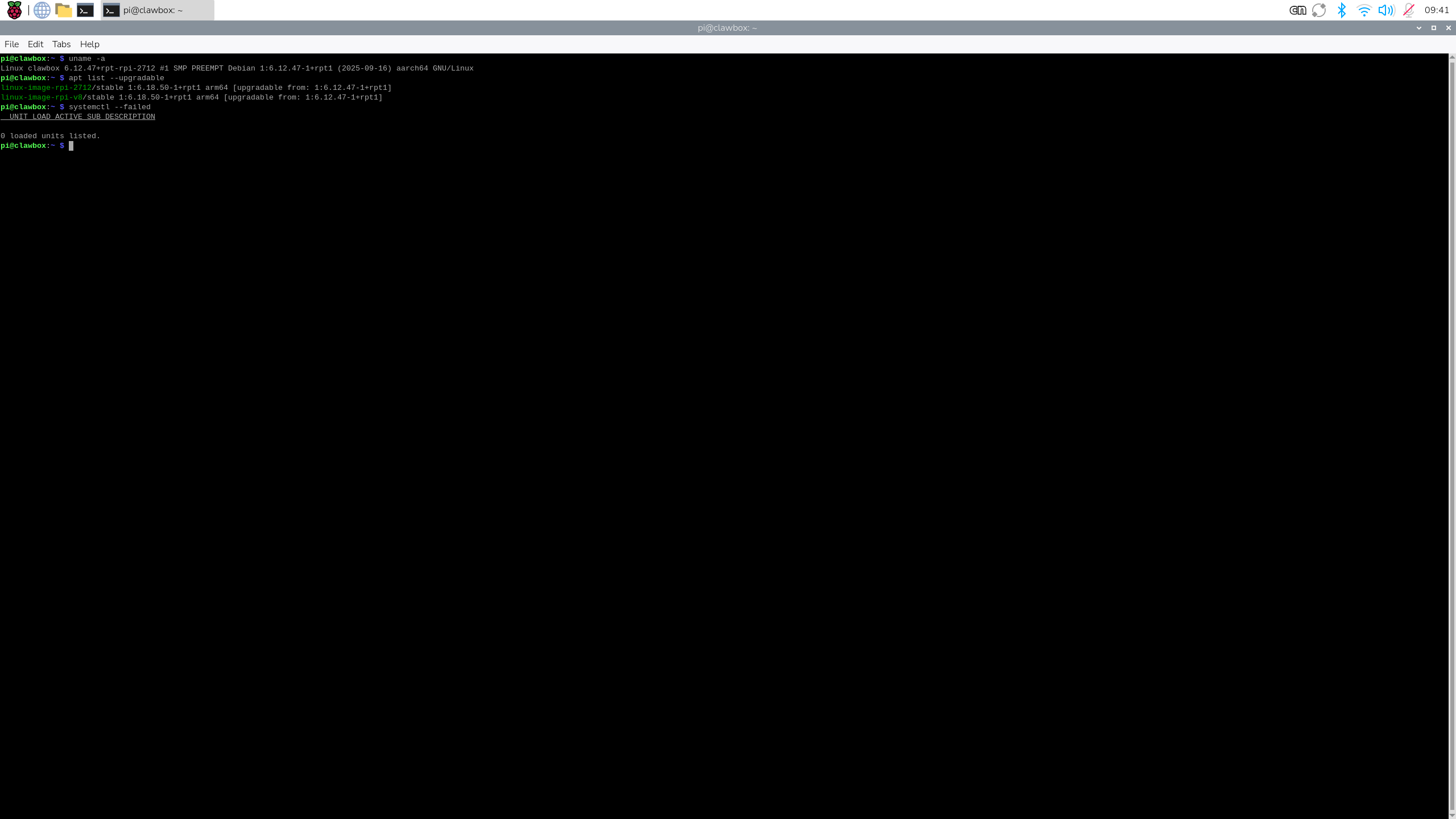
We then ran Fastfetch for one final summary. It confirmed Debian 13 on the Compute Module 5 Lite, the four-core BCM2712 processor, 4 GB of memory, and the expected display and storage information. With that, the basic setup was complete and we were ready to move on to OpenClaw itself.
OpenClaw is present, but not yet proven
The software image already contained Docker and an OpenClaw runtime image. That confirms EDATEC has prepared more than a plain Raspberry Pi desktop. It does not, by itself, tell us how smooth the actual agent setup will be or how useful the experience feels in daily use.
That is where we are drawing the line for this chapter. The computer is running, secured, updated, and ready for the part that gives it its name. The next step is a proper OpenClaw session, documented from start to finish.